Blurring is a powerful design technique that can help you create depth, focus attention, or add visual polish to your UI. Whether you want to soften a background image, blur a popup’s backdrop, or create a frosted glass effect, Figma makes it easy to apply blur effects with just a few clicks. In this guide, we’ll show you how to blur objects using both Layer Blur and Background Blur in Figma.
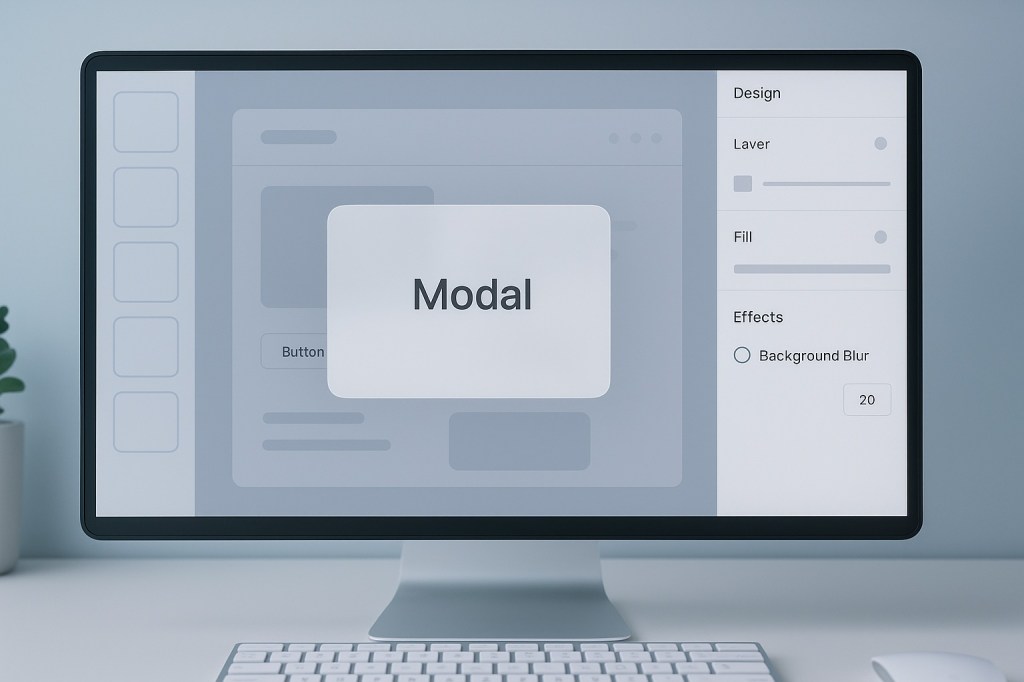
Understanding the Two Blur Types in Figma
Figma offers two types of blur effects, each with different use cases:
- Layer Blur: This blurs the selected object itself, useful for softening images, text, or shapes.
- Background Blur: This blurs everything behind the selected object, perfect for modals, tooltips, or frosted glass UI.
Step-by-Step: How to Blur an Object in Figma
✅ 1. Select the Object You Want to Blur
Click on the image, shape, text, or frame you want to apply a blur to.
✅ 2. Add a Blur Effect
In the right-hand panel under the Design tab:
- Scroll down to the Effects section.
- Click the “+” icon to add a new effect.
- From the dropdown, choose either:
- Layer Blur – to blur the object itself
- Background Blur – to blur what’s behind it
✅ 3. Adjust the Blur Intensity
Once the blur effect is applied:
- Use the slider or type in a number to set the blur level (higher numbers = more blur).
- For Background Blur, ensure your object has a fill with some transparency (e.g. white at 70%) to see the blur clearly.
When to Use Layer vs Background Blur
| Use Case | Blur Type | Example |
|---|---|---|
| Softening a photo or shape | Layer Blur | Blurring an avatar or background image |
| Creating a frosted glass card | Background Blur | UI overlays, modals, tooltips |
| Muting a button state | Layer Blur | Blurred hover or disabled states |
| Focusing attention | Background Blur | Blurring behind a focused popup |
Tips for Better Blur Effects
- Use semi-transparent fills with Background Blur to create realistic glass-like visuals.
- Layer Blur works great for depth effects or atmospheric design touches.
- Combine blur with drop shadows for a modern, elevated UI look.
Final Thoughts
Figma gives you full control over visual effects like blur, without needing Photoshop or advanced image editing tools. With just a few clicks, you can apply Layer Blur or Background Blur to bring visual depth, focus, and elegance to your designs. Whether you’re designing an app, a website, or a design system, blur is a small effect that makes a big impact.

 Designilo