Whether you’re designing a headline, a button label, or a body paragraph, adjusting text size is one of the most fundamental actions in Figma. Thankfully, Figma makes it easy to enlarge or shrink text with precision and flexibility. This quick guide will show you several ways to scale text in Figma, along with tips for working with font sizes in a responsive, design-system-friendly way.
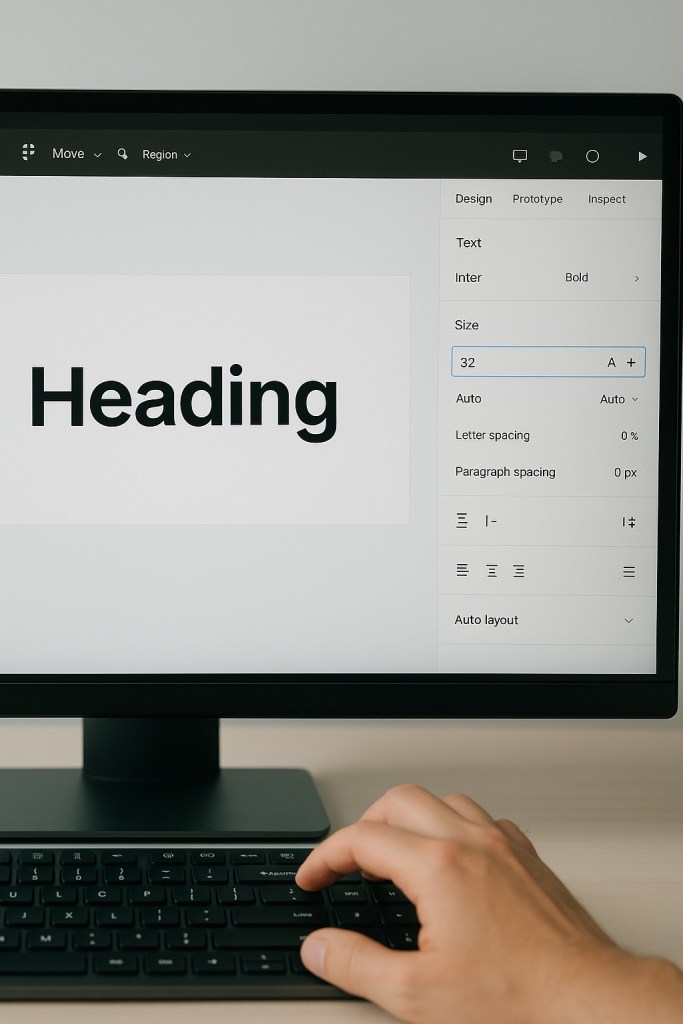
Method 1: Using the Text Panel
✅ Step-by-Step:
- Select the Text Layer
Click on the text you want to enlarge. You can also use the Shift + click shortcut to select multiple text layers at once. - Locate the Font Size Field
In the right-hand Design panel, under the Text section, you’ll see the current font size displayed in a number input box (e.g., “16”). - Change the Font Size
- Type a new number to set a specific size (e.g., “32”).
- Or, click the up/down arrows to adjust the size gradually.
- Pro tip: Hold Shift while pressing the up/down arrows to change size in increments of 10 instead of 1.
Method 2: Using the Keyboard Shortcut
If you want to work faster, use the native keyboard shortcut:
- Ctrl/Cmd + Shift + > — Increase text size
- Ctrl/Cmd + Shift + < — Decrease text size
This shortcut works only when you’re editing a text layer directly.
Method 3: Scale Tool (for Proportional Resizing)
If you want to resize text along with other UI elements (buttons, frames, etc.), you can use the Scale Tool:
- Select the text along with other objects.
- Hit K to activate the Scale Tool.
- Drag the handles to scale the group up or down.
Font size will increase proportionally.
This method is helpful for resizing mockups or components uniformly, but it’s less precise than manually setting the font size.
Font Size Tips for Consistency
- Use Text Styles: Instead of setting sizes manually each time, define and apply text styles (like H1, Body, Caption) to keep your typography consistent.
- Follow a Type Scale: Stick to a typographic scale like 8pt, 12pt, 16pt, 24pt, 32pt for consistency across your UI.
- Use Variables: In Figma’s Variables panel, you can define and reuse font sizes as tokens for better design system integration.
Final Thoughts
Enlarging text in Figma is fast and intuitive—whether you’re entering a specific font size, using keyboard shortcuts, or scaling visually. For professional results, pair these methods with consistent text styles and typographic tokens. That way, you’re not just resizing text—you’re building a scalable, flexible design system.

 Designilo