Mistakes happen. Whether you accidentally deleted a layer, moved the wrong object, or changed a property unintentionally, Figma makes it incredibly easy to undo your actions instantly. With simple shortcuts and a built-in version history system, you can stay confident while exploring and iterating freely.
This article covers everything you need to know about how to undo in Figma—and when to use other tools like Redo and Version History for deeper recovery.
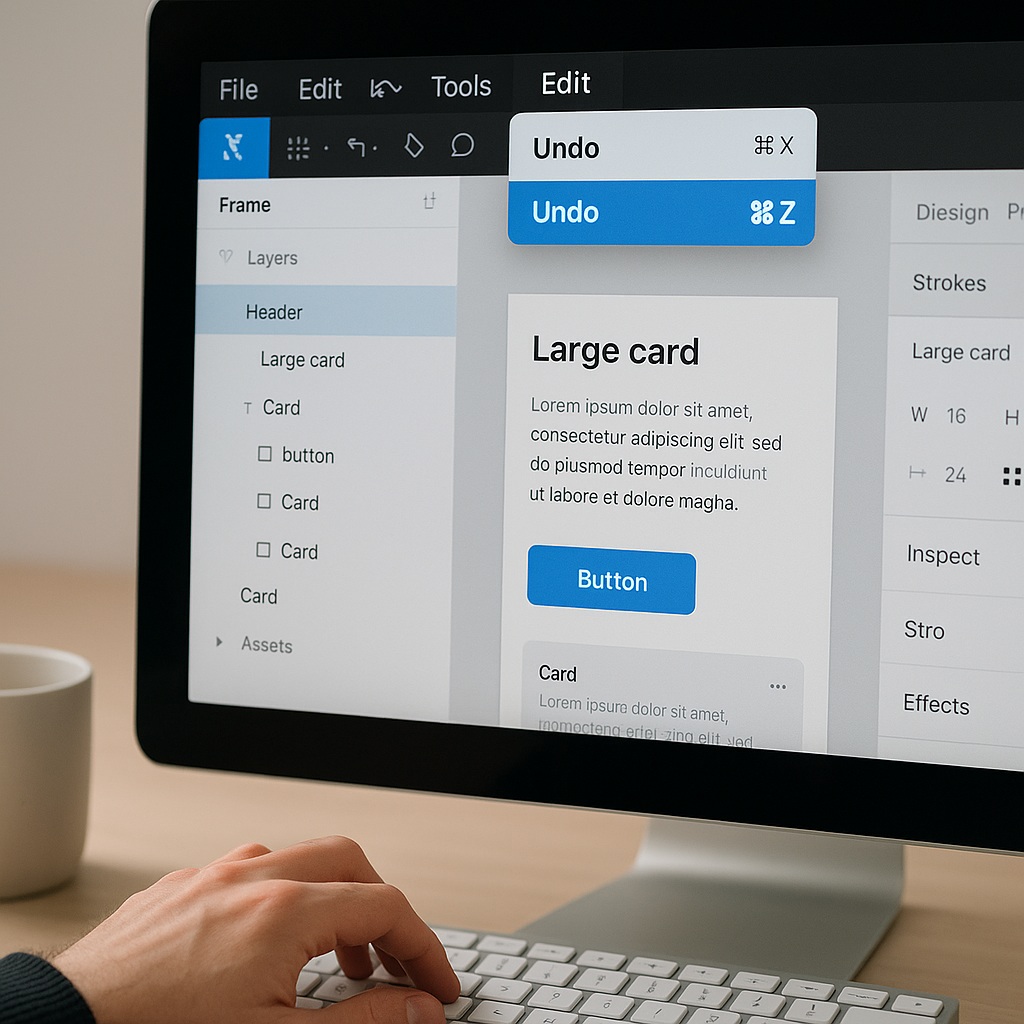
1. Basic Undo Shortcut
The most common way to undo in Figma is using your keyboard:
- Windows:
Ctrl + Z - Mac:
Cmd + Z
Each time you press this shortcut, Figma will roll back one step in your design history. You can press it multiple times to undo a series of actions—like deleting a group, resizing a frame, or changing text.
2. Redo Shortcut
Changed your mind after undoing?
- Windows:
Ctrl + Shift + Z - Mac:
Cmd + Shift + Z
This Redo command moves forward in your edit history, restoring actions you’ve just undone.
3. Undo from the Menu Bar
If you prefer not to use shortcuts, you can also access undo/redo from the top menu:
- Go to Edit > Undo
- Or Edit > Redo
This is useful when you’re using Figma in presentation mode or working from a touch device without a keyboard.
4. Using Version History (for Larger Undos)
Figma autosaves your work continuously and also stores a version history. If you need to go back further than just a few steps—or if you want to restore a specific version—you can use this feature:
✅ How to Access It:
- Go to File > Show Version History
- Browse the automatically saved versions (timestamped)
- Click to preview, then choose Restore this version if needed
This is ideal for recovering from accidental large deletions, overwrites, or team-wide edits you want to roll back.
5. Undo in Collaboration Mode
Figma is built for real-time collaboration. When multiple users are working on a file at the same time:
- You can only undo your own actions, not the changes made by others.
- Each user has a separate undo history, so actions are isolated by editor.
This prevents unintentional disruption of your teammates’ changes.
Final Thoughts
Undoing in Figma is fast, reliable, and essential to creative freedom. Whether you’re refining typography, adjusting layout, or exploring entirely new directions, you can quickly reverse changes with Ctrl/Cmd + Z or dig deeper with Version History. And thanks to Figma’s collaborative model, every contributor can safely experiment without fear of permanent mistakes.

 Designilo