Figma is widely used for designing user interfaces, wireframes, presentations, and even pitch decks—but eventually, you’ll need to share your work outside of Figma. Whether you’re preparing for a client presentation or archiving a design milestone, exporting your work to PDF is one of the most straightforward ways to deliver polished results. Fortunately, Figma makes it easy to export your designs as PDF files, and this guide will walk you through each step.
✅ Why Export to PDF from Figma?
Exporting to PDF is useful when you want to:
- Share designs with stakeholders who don’t use Figma
- Create printable documents or pitch decks
- Combine multiple frames into a multi-page document
- Maintain vector quality in presentations and handouts
Figma supports exporting single or multiple frames as PDF, preserving your layout, fonts, and design fidelity.
✅ How to Export a Frame to PDF
Step-by-Step:
- Select the Frame You Want to Export
- Click on a single frame (not a group or object).
- Make sure the frame boundary is selected—not just an element inside it.
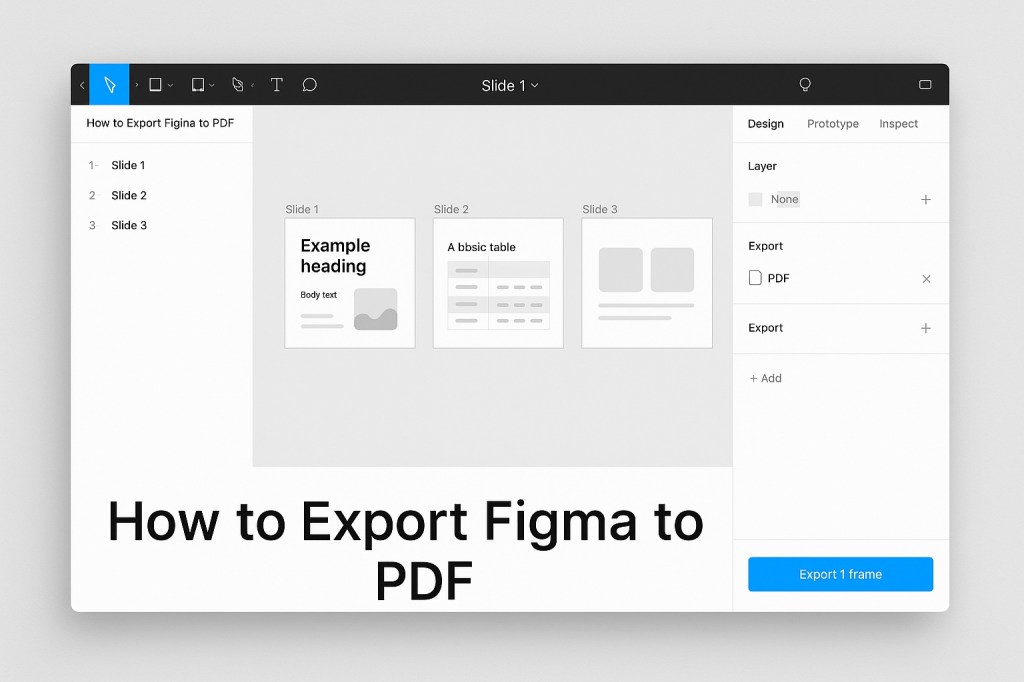
- Go to the Right-Hand Panel
- Scroll down to the Export section.
- Click the “+” (plus icon) to add an export setting.
- Choose PDF as the Format
- From the dropdown menu, select PDF.
- You can choose 1x (default size) or adjust the scale if needed.
- Click “Export [Frame Name]”
- Figma will generate a PDF and prompt you to save it to your computer.
That’s it! You now have a high-quality, vector-based PDF of your frame.
✅ How to Export Multiple Frames as a Multi-Page PDF
If you want to export a multi-page PDF, Figma can handle that too.
Steps:
- Select Multiple Frames
- Hold Shift and click each frame, or drag to select a group of frames.
- Make sure each item selected is a frame—not groups or individual layers.
- Follow the Same Export Process
- With all frames selected, go to the Export section.
- Add an export setting and choose PDF.
- Export as One File
- Figma will combine the selected frames into a single multi-page PDF in the order they appear in the Layers panel (top to bottom).
🛠️ Tips for Better PDF Export
- Name your frames clearly before exporting—they appear as page titles in some PDF viewers.
- If your file includes scrolling areas or overlays, flatten or simplify them for best results in static PDFs.
- Use Figma’s Presentation view to simulate how the PDF will look before exporting.
❌ What You Can’t Do (Yet)
- You can’t export prototypes or animations as PDFs.
- PDFs won’t include interactive elements, overlays, or hover states.
- Raster effects (like blurs or drop shadows) may slightly differ from how they render on screen.
Final Thoughts
Exporting from Figma to PDF is a fast and reliable way to turn your designs into clean, shareable documents. Whether you’re building a pitch deck, UI mockup, or product overview, Figma’s built-in PDF export tools give you full control over what’s shared—and how it’s delivered. With just a few clicks, you can go from screen to paper-ready presentation in no time.

 Designilo