Figma is a powerful interface design tool, but unlike spreadsheet software, it doesn’t include a built-in feature for merging table cells. Still, that doesn’t mean you’re out of luck. With a few creative techniques, you can visually merge cells and simulate the look and behavior of traditional table merging, whether you’re designing dashboards, UI layouts, or content grids.
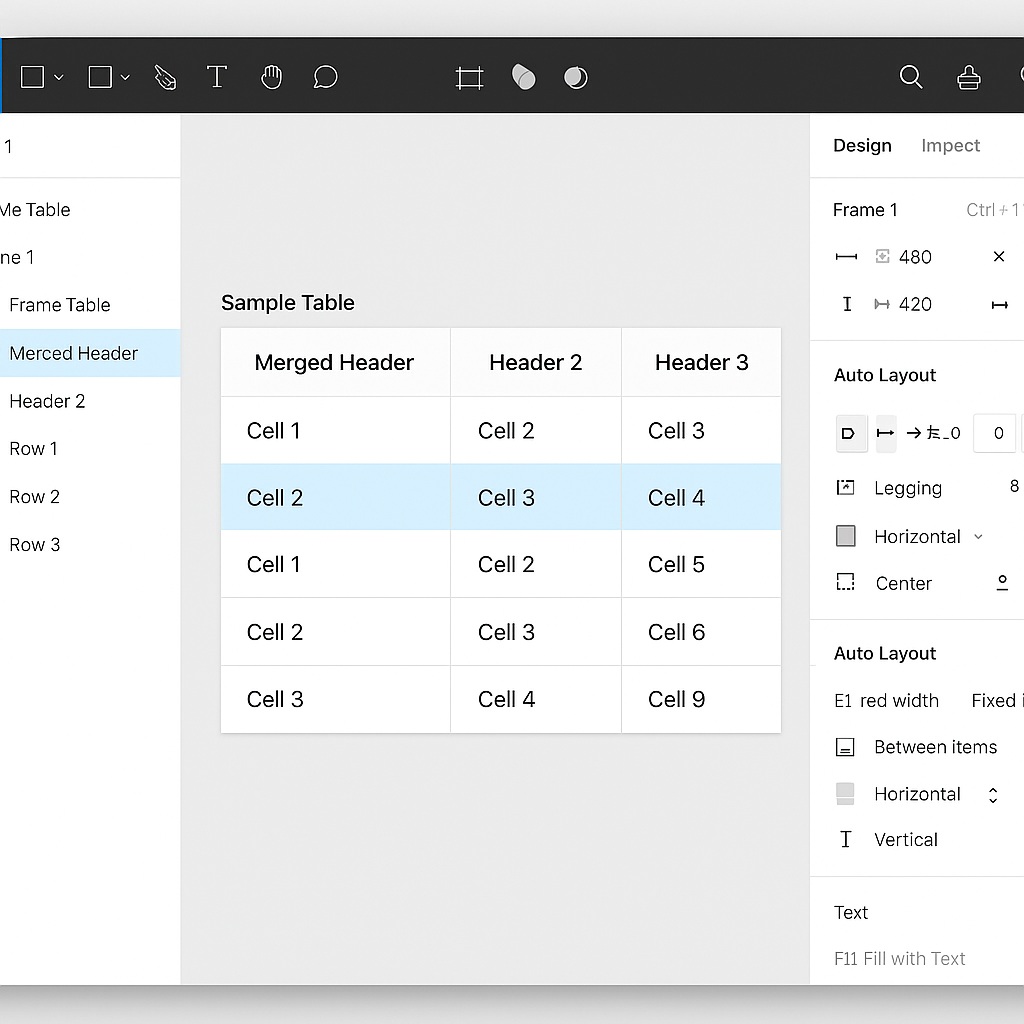
🧱 Understanding Tables in Figma
In Figma, tables are typically created using a combination of frames, text layers, and Auto Layout. Each “cell” is often a frame with a background and padding, and rows or columns are nested using vertical or horizontal Auto Layout.
This makes tables extremely customizable—but also means you’re responsible for building and modifying structure manually.
🛠 How to Merge Table Cells (Visually)
To simulate merged cells, follow these steps:
🔹 Step 1: Identify the cells to be merged
Let’s say you have a row with four columns, and you want the first two to appear merged into one.
🔹 Step 2: Remove internal dividers
If you’re using divider lines between cells (e.g. strokes or rectangle layers), delete the one that separates the cells you want to merge.
🔹 Step 3: Combine content
Remove one of the text layers or cell backgrounds, then stretch the adjacent cell’s frame or text box to span the width of both.
🔹 Step 4: Adjust layout
If using Auto Layout, you may need to set a fixed width for the merged cell and adjust the spacing of other cells manually. Alternatively, nest the merged cell inside its own frame with appropriate padding and alignment.
✨ Example Use Cases
- Merging header cells in tables for multi-column labeling
- Combining first-name and last-name fields in a contact list
- Simulating complex layouts in content dashboards or admin panels
⚠️ Things to Watch For
- Since this isn’t true merging, the content in merged cells won’t automatically span or center unless you set it manually.
- Be cautious with responsive resizing—you may need to group or constrain merged areas to prevent distortion.
- Collaborators may mistake manually merged cells for regular ones, so consider labeling or documenting custom layouts in your design system.
🔄 Alternatives and Plugins
While Figma doesn’t have native table merging, some third-party plugins (like Table Creator or Figma Tables) can help generate grid structures more efficiently. However, even these rely on visual simulation rather than true merge logic.
✅ Final Thoughts
Although you can’t technically “merge cells” in Figma like in Excel, you can achieve the same visual effect through thoughtful layout adjustments. With Figma’s flexibility in frame resizing, alignment, and Auto Layout, simulating merged cells is simple and clean once you get the hang of it. This approach gives you full control over table appearance without compromising on design precision.

 Designilo