Combining layers is a fundamental task in Figma that allows you to stay organized, streamline your workflow, and create complex shapes or components. Whether you want to simply group multiple elements or merge them into a single vector, Figma gives you flexible options to work with.
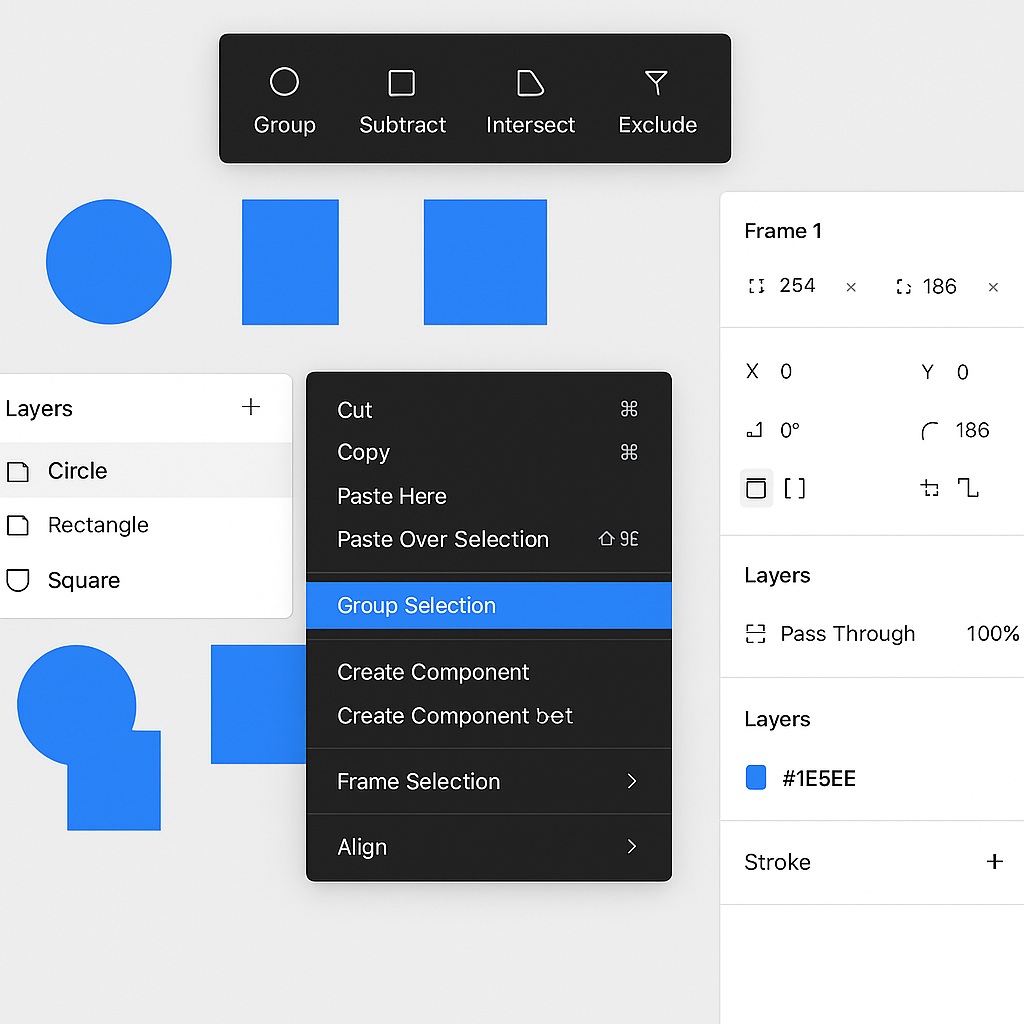
🧱 Option 1: Grouping Layers for Organization
If your goal is to keep multiple layers together but still editable, grouping is the best option.
Steps to Group Layers:
- Hold Shift and click to select each layer you want to combine.
- Press Ctrl + G (Windows) or Cmd + G (Mac),
or right-click and select *“Group Selection.”
This creates a group in the Layers panel that can be moved, resized, and styled as one unit, while still allowing access to individual elements.
✂️ Option 2: Combining Layers Using Boolean Operations
Figma also allows you to merge shapes into a single vector using Boolean operations:
Boolean Options:
- Union (Add) – Merges selected shapes into one
- Subtract – Removes the top shape from the bottom
- Intersect – Keeps only the overlapping area
- Exclude – Removes the overlapping area
How to Use:
- Select the shapes you want to combine.
- Click one of the Boolean tools in the top toolbar (or use the right-click > Boolean menu).
- The result will be a combined vector layer that you can edit in the vector editor.
This is especially useful for creating icons, logos, and custom shapes.
⚠️ Pro Tip: Flattening Combined Shapes
Once you’ve applied a Boolean operation and you’re happy with the result, you can flatten it to make it a permanent vector:
- Select the combined layer
- Use Shift + Ctrl/Cmd + O or right-click and choose “Flatten”
This simplifies your layer structure and improves performance, especially in complex files.
🧭 When to Use Grouping vs Boolean
| Use Case | Best Option |
|---|---|
| Organizing UI elements | Grouping |
| Building icons or complex shapes | Boolean Operations |
| Need to preserve layer editing | Grouping |
| Want to simplify to one vector | Boolean + Flatten |
✅ Final Thoughts
Combining layers in Figma can be as simple as grouping for structure or as advanced as using Boolean operations for design precision. Each method has its use case, and knowing when to apply which one will help keep your files clean, efficient, and design-ready. Whether you’re managing a layout or crafting a pixel-perfect icon, Figma’s layer tools make it easy to work smarter.

 Designilo