Figma provides a flexible, infinite canvas that allows designers to work beyond traditional page constraints. Whether you’re adding more screens to a flow, expanding design documentation, or creating additional mockups, extending a page in Figma is simple and intuitive. This article shows you how to expand your working space and manage large-scale projects effectively.
🧭 Understanding the Canvas in Figma
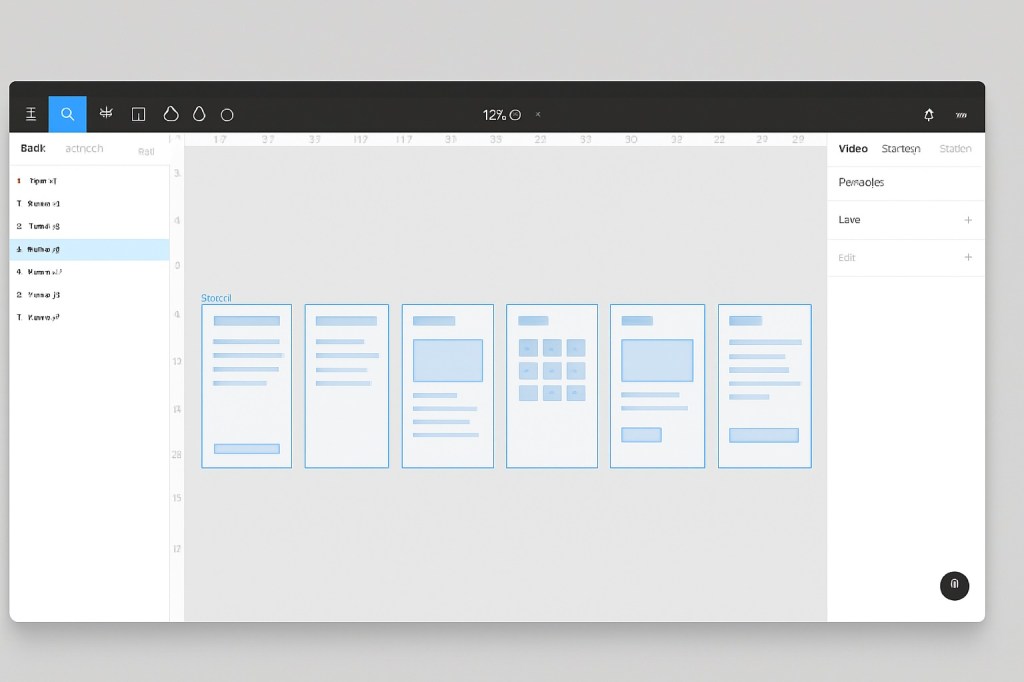
Unlike tools with fixed canvas sizes, Figma gives you a virtually infinite canvas. This means you’re not restricted by preset page dimensions—you can scroll and design in any direction as far as you need. This setup is perfect for UI designers working on multi-screen apps, complex user flows, or large documentation layouts.
🛠 How to Extend the Page
There’s no specific “extend page” button in Figma, but here’s how to create more space:
Method 1: Scroll and Place
- Zoom out using
Ctrl + -(Windows) orCmd + -(Mac). - Use the hand tool (
H) or scroll bars to pan across the canvas. - Click anywhere in the extended space and add a new Frame, shape, or object.
Figma will automatically render that space active, so your page effectively grows as you design.
Method 2: Dragging a Frame
- Click on any Frame or element on the canvas.
- Hover over the edges or corners until you see the resize cursor.
- Drag outward to extend the frame’s dimensions in any direction.
This is useful when working within a single frame that you want to expand instead of placing new ones elsewhere.
🎯 Tips for Managing Extended Pages
As your design area grows, keeping it organized is key. Here are some best practices:
- Use pages strategically: Break your file into multiple pages (e.g., “Wireframes”, “UI”, “Prototypes”) if your content is sprawling.
- Label your frames: Clearly name frames so they’re easy to locate in the Layers panel.
- Use rulers and guides: Press
Shift + Rto toggle rulers and drag guides to align your content across large areas.
🔍 Navigating Large Canvases
Figma offers powerful navigation tools to help you manage extended pages:
- Mini-map: Press and hold
CtrlorCmdwhile scrolling to zoom and get an overview. - Outline view: Use the Layers panel to jump between frames quickly.
- Find in canvas: Use
Cmd/Ctrl + Fto search for frame or layer names.
✅ Conclusion
Extending a page in Figma is as easy as zooming out and designing in new areas of the canvas. With no hard limits and a clean UI, Figma makes it effortless to scale your design space as your project grows. Just remember to stay organized, label your frames, and take advantage of Figma’s navigation tools to keep your workspace efficient and clear.

 Designilo