Bending lines in Figma is a simple but powerful technique that lets you create curves, arcs, and flowing shapes for illustrations, paths, or custom UI details. Whether you’re designing a decorative element or building a connector between interface parts, learning how to manipulate vector points is essential. This article will walk you through how to bend lines in Figma using the vector editing tools.
🎯 Step-by-Step: Bending a Line
1. Draw a Line
Start by creating a line:
- Select the Pen Tool (P) or Line Tool (L).
- Click once to place the first point, then again to place the second point and finish the line.
2. Enter Vector Edit Mode
To bend your line:
- Select the line.
- Press Enter or right-click and choose “Edit Object.”
- You’ll see vector points appear on the line.
3. Add or Select a Point
- If you want to bend a specific part of the line, click directly on the line to add a new anchor point.
- Alternatively, click an existing point to adjust its position.
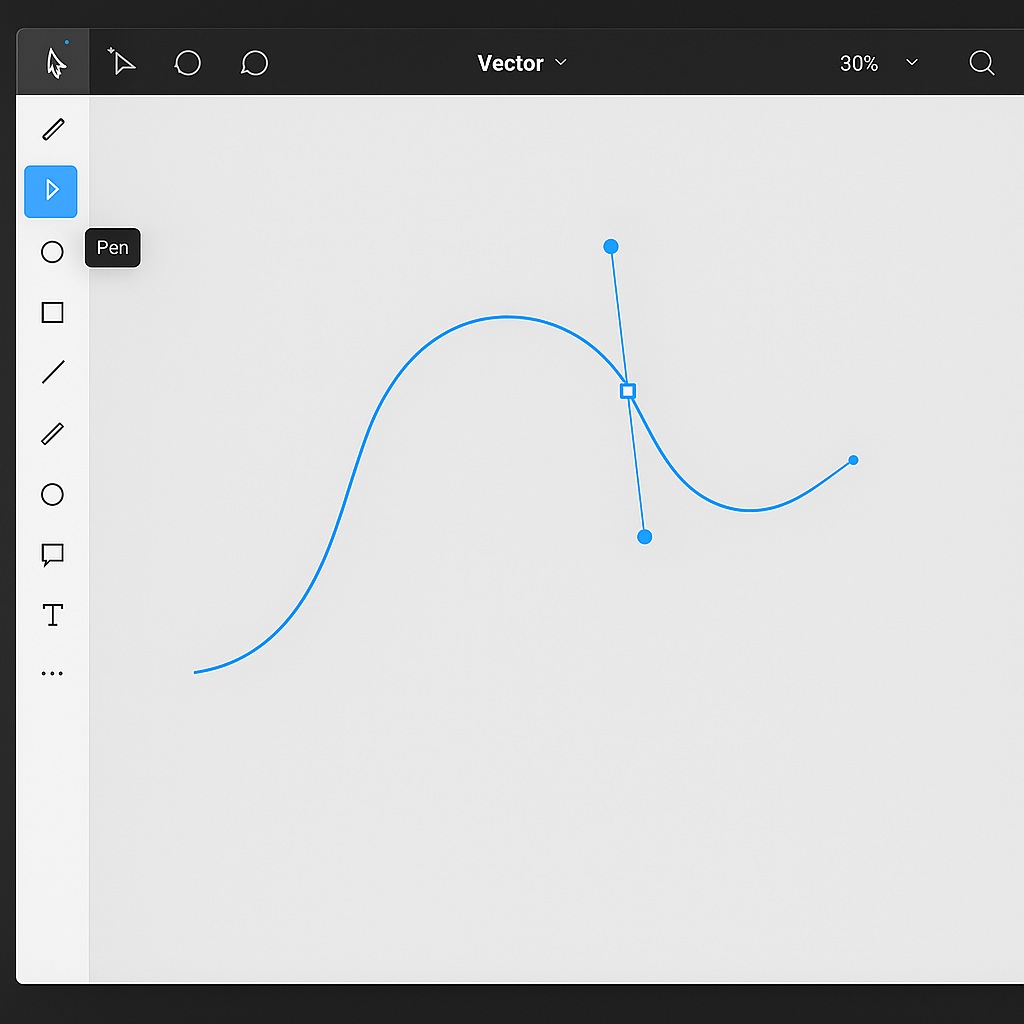
4. Drag to Curve
- With the point selected, drag it out of alignment to create a curve.
- Figma will automatically add Bézier handles for finer control.
- You can adjust these handles to shape the bend precisely.
🧰 Tip: Use the Convert Tool
For more control:
- Use the Convert options in the toolbar to switch between corner and smooth points.
- A smooth point gives you symmetrical Bézier handles for fluid curves.
- A disconnected point allows independent handle movement for custom shapes.
🖼️ Use Cases for Curved Lines
- Creating arrows and connectors between frames
- Drawing flow lines or paths in UI diagrams
- Making artistic shapes or illustrations
- Designing graph curves or movement animations
⚠️ Things to Keep in Mind
- Lines must be converted to vector paths (if they aren’t already) before full curve control is available.
- Curves can affect stroke width and alignment if you’re using a dashed or tapered stroke—always preview in final size.
✅ Final Thoughts
Mastering line bending in Figma opens up a wide range of creative and technical design options. Once you’re comfortable manipulating points and Bézier handles, you’ll be able to sketch out icons, flows, and expressive illustrations directly in your design file. It’s one of those small techniques that makes a big difference in how dynamic your designs can feel.

 Designilo