Blending colors in Figma is a creative way to enhance your designs, whether you’re working on backgrounds, UI highlights, illustrations, or experimental visual effects. Figma offers two primary tools for color blending: Blend Modes and Gradients. Each gives you control over how colors interact visually to produce smooth transitions, layered effects, or even realistic shading.
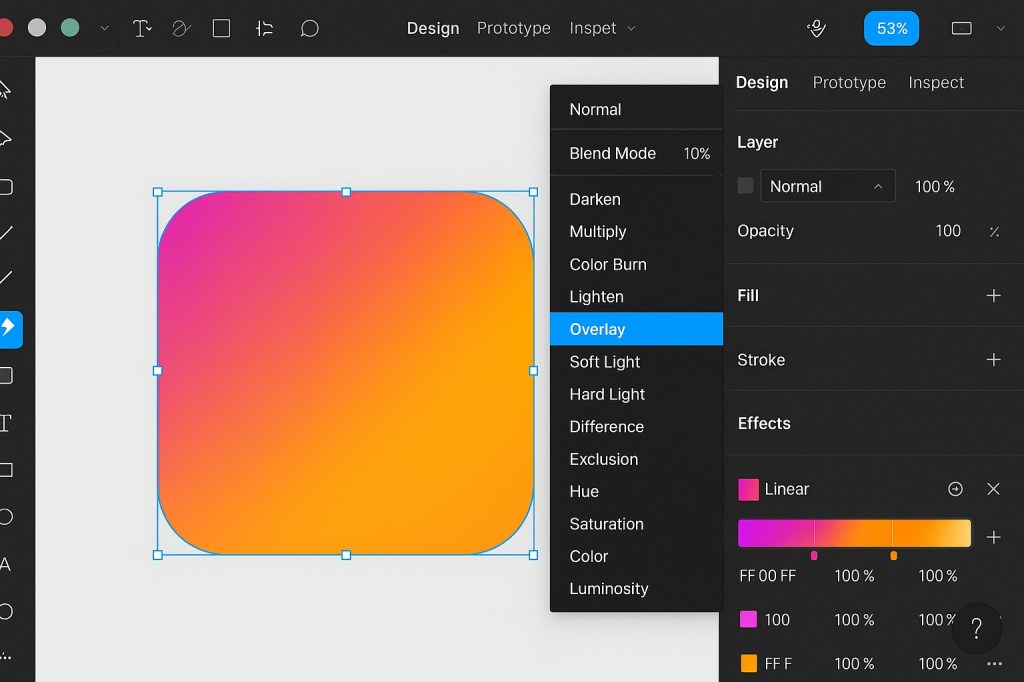
🎨 1. Using Blend Modes
Blend Modes in Figma allow one layer to visually interact with the layer(s) beneath it. They’re especially helpful for achieving photo overlays, shadows, lighting effects, and semi-transparent UI elements.
Steps to Use Blend Modes:
- Select the layer you want to blend.
- In the right-hand panel, look under the “Layer” section.
- Click the dropdown that says “Normal” — this is the default blend mode.
- Choose from modes like:
- Multiply – for darkening effects
- Screen – for lightening
- Overlay – for contrast enhancements
- Soft Light, Hard Light, etc. – for nuanced effects
💡 Tip: The results depend on the colors of the layers underneath.
🌈 2. Creating Color Gradients
Gradients let you blend two or more colors within a single object to create smooth transitions.
How to Apply a Gradient:
- Select any shape or frame.
- In the Fill section of the right panel, click the color swatch.
- Change the fill type from Solid to one of the following:
- Linear Gradient
- Radial Gradient
- Angular Gradient
- Diamond Gradient
- Click the gradient stops and assign different colors.
- Drag the direction handles to control the flow and direction of the blend.
✅ You can add multiple gradient stops by clicking along the gradient bar.
🔄 3. Layer Opacity & Transparency
To fine-tune blending:
- Adjust Layer Opacity from the top of the right-hand panel.
- You can also apply opacity to individual fills, strokes, or effects—great for soft glows or subtle overlays.
🖌️ Common Use Cases for Color Blending
- Creating soft color transitions for UI backgrounds
- Designing button hover effects or highlights
- Adding lighting or shading effects to mockups
- Stylizing photos or hero images with tints
- Simulating depth with overlapping gradients
⚠️ Keep in Mind
- Some blend modes work best with rich color layers underneath.
- Overusing blending can create muddy visuals—test on various backgrounds.
- In collaborative files, note that blend modes may look different on different monitors depending on color calibration.
✅ Final Thoughts
Color blending in Figma is both simple and versatile. With Blend Modes, gradients, and opacity controls, you can add depth, mood, and polish to your designs. Mastering these tools gives you the flexibility to move beyond flat color palettes and create visually dynamic compositions.

 Designilo