Managing layers in Figma is essential for keeping your designs clean, organized, and efficient. Whether you’re cleaning up after experimentation or removing outdated elements, knowing how to delete a layer is a basic yet crucial skill. Fortunately, Figma makes this process quick and intuitive.
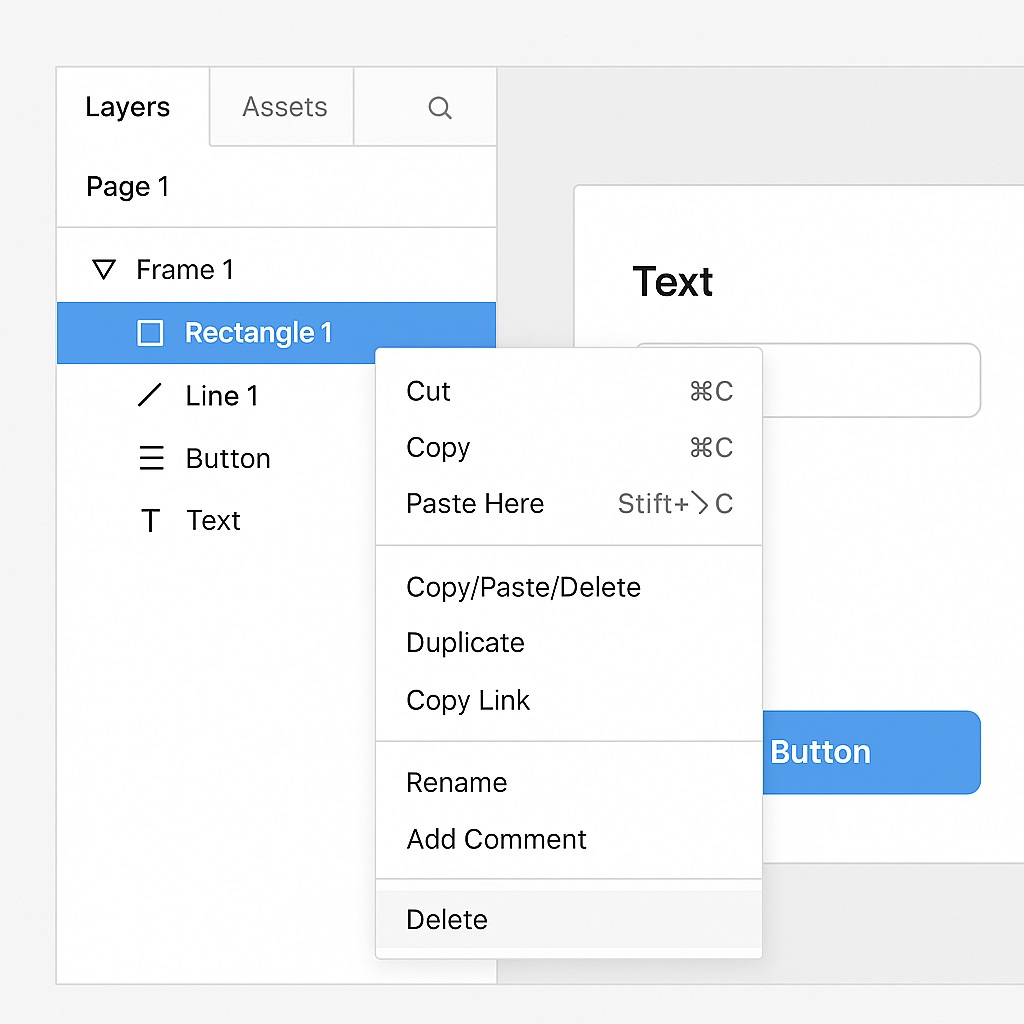
🧭 Method 1: Using the Layers Panel
- Open your Figma file and locate the Layers panel on the left-hand side.
- Click on the layer you want to remove.
- Hit the Delete (Windows) or Backspace (Mac) key on your keyboard.
Alternatively, you can right-click the layer and select “Delete” from the context menu.
✅ Tip: Hold
Shiftand click multiple layers to select and delete them all at once.
🖱️ Method 2: Deleting from the Canvas
If you’re working directly on the canvas:
- Click the object or group you want to delete.
- Press Delete or Backspace, or right-click and choose Delete.
You’ll see it removed from both the canvas and the Layers panel.
🔒 Deleting Locked Layers
If the layer is locked:
- First, right-click the object and choose Unlock, or unlock it from the Layers panel.
- Then proceed with deletion as normal.
🗑️ Undoing a Mistake
Accidentally deleted the wrong layer? No worries:
- Just hit
Ctrl + Z(Windows) orCmd + Z(Mac) to undo your last action instantly.
🧼 Pro Tip: Clean Up with Layer Management
As your designs grow, deleting unused or empty layers regularly helps optimize performance and clarity. Use Figma’s Outline view or naming conventions to spot unnecessary layers quickly.

 Designilo