Whether you’re cleaning up your design or removing unwanted elements, deleting a rectangle in Figma is fast and straightforward. This guide will walk you through the simple steps to remove any rectangle shape from your canvas using both keyboard shortcuts and mouse actions.
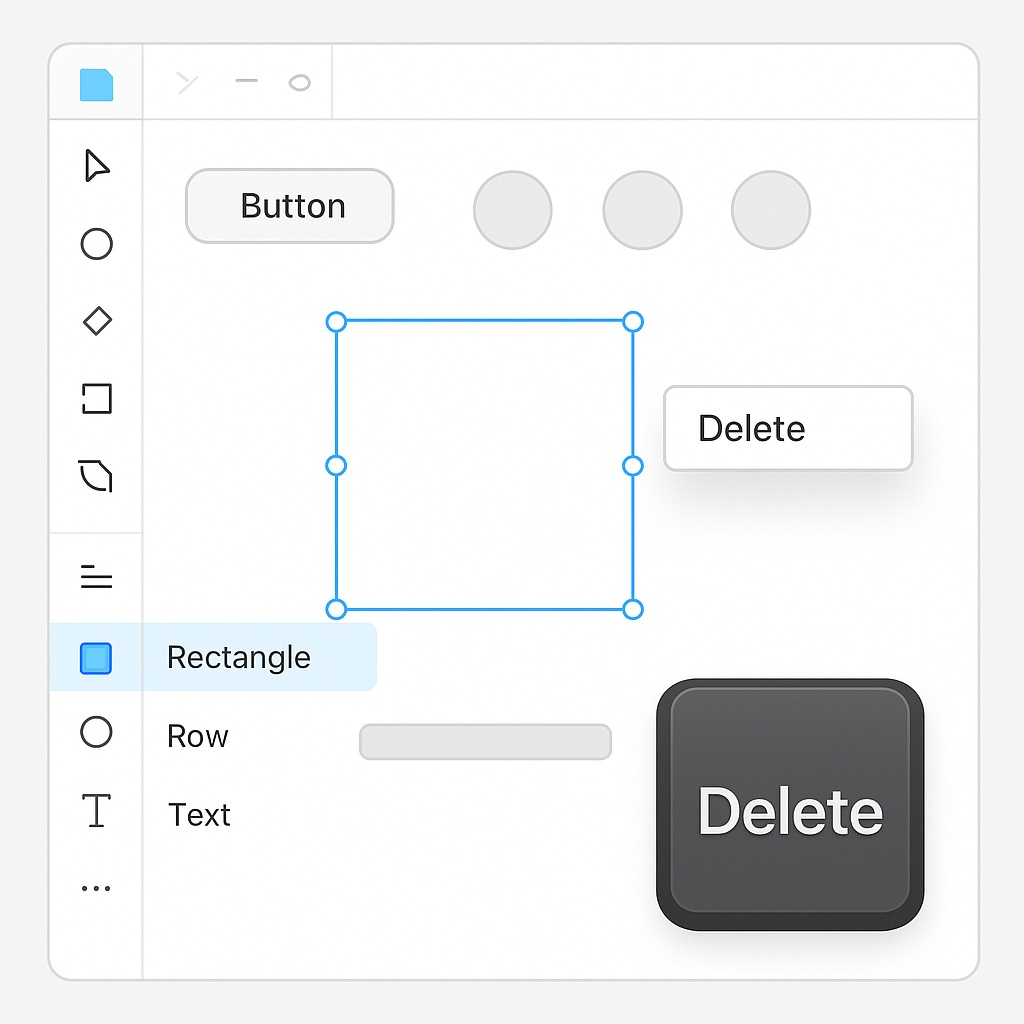
🔹 Step 1: Select the Rectangle
To begin, click on the rectangle you want to delete. You can do this directly on the canvas or by locating it in the Layers panel on the left-hand side of the interface. Make sure the shape is highlighted, which confirms it’s selected.
💡 Tip: If you’ve named your rectangle layer, finding it in the Layers panel can be even faster.
🔹 Step 2: Delete the Rectangle
Once the rectangle is selected, you have two main options to delete it:
- Keyboard shortcut: Press Delete or Backspace on your keyboard.
- Right-click method: Right-click the selected rectangle and choose “Delete” from the context menu.
The rectangle will be instantly removed from your frame or canvas.
🔹 Step 3: Undo If Needed
If you delete the rectangle by mistake, you can undo the action immediately by pressing Ctrl + Z (Windows) or Cmd + Z (Mac). Figma’s undo function lets you recover from accidental deletions easily.
🧭 Summary
| Action | Shortcut/Method |
|---|---|
| Select Rectangle | Click it or choose from the Layers panel |
| Delete | Press Delete / Backspace or right-click |
| Undo | Ctrl+Z / Cmd+Z |
🖌️ Common Use Cases
- Cleaning up placeholder shapes.
- Removing extra layout blocks.
- Simplifying wireframes during iteration.

 Designilo