Whether you’re working on responsive designs or creating visual mockups, adjusting image dimensions is a common task in Figma. While Figma doesn’t have a dedicated “stretch” tool, you can easily stretch, squash, or resize any image manually or numerically with just a few clicks. This article shows you how to stretch images in Figma without losing your workflow efficiency.
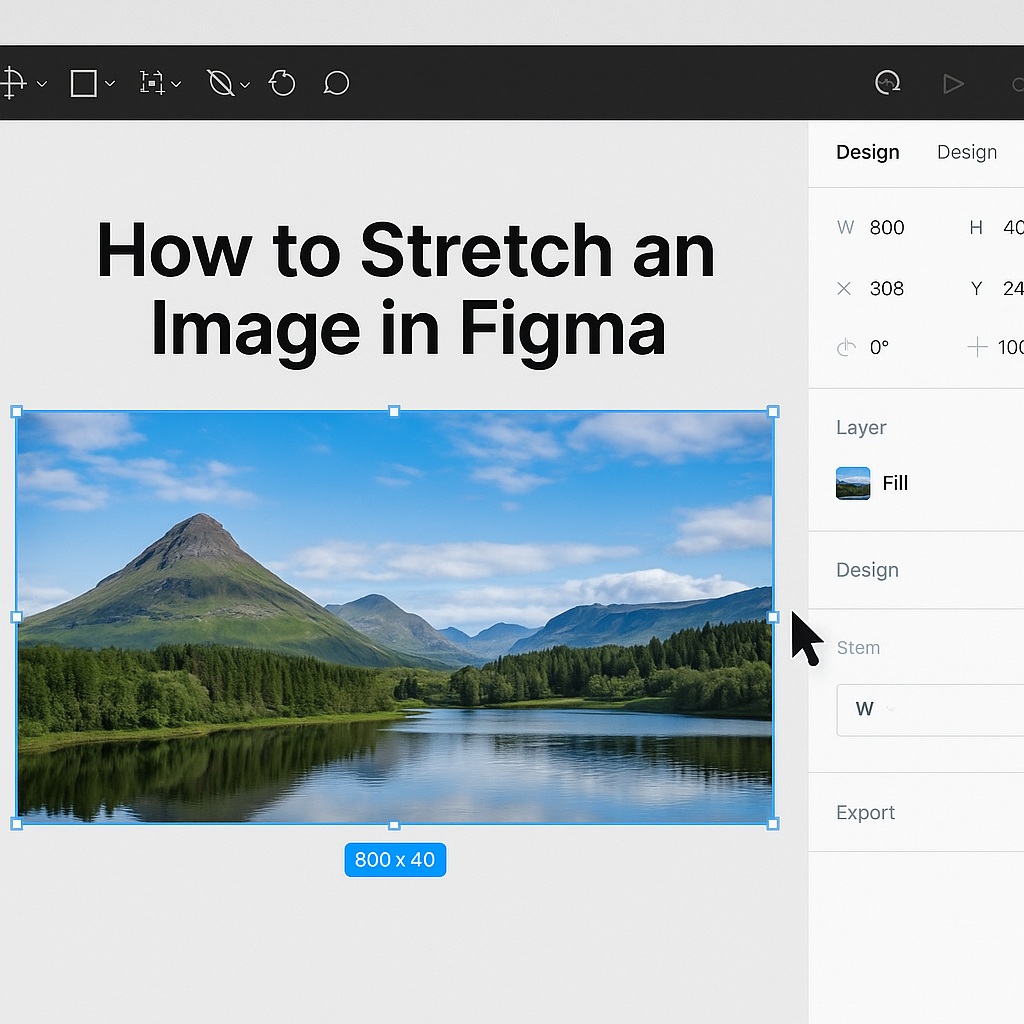
🖼️ What Does “Stretch” Mean in Figma?
In Figma, stretching an image means resizing it disproportionately—for example, changing the width without affecting the height, or vice versa. Unlike tools that maintain aspect ratio by default, Figma gives you control to scale, stretch, or distort images however you like.
✋ Method 1: Stretch an Image Using Handles
Steps:
- Select the image on the canvas.
- Click and drag the bounding box handles (corner or side).
- To stretch:
- Drag a side handle to change width or height independently.
- Avoid holding Shift if you want to stretch (Shift maintains aspect ratio).
- Release to apply the stretch.
This method is visual and ideal for quick mockups or testing responsive behavior.
🔢 Method 2: Stretch Using Manual Dimensions
For pixel-perfect control, use the design panel:
- Select the image.
- In the right-hand sidebar, locate the W (width) and H (height) fields.
- Enter custom values (e.g., change width from 400px to 800px while keeping height at 400px).
- Press Enter.
This will stretch the image along one axis, producing a squashed or elongated result.
⚙️ Tips for Better Image Control
- Lock Aspect Ratio: Click the lock icon between width and height fields if you want to prevent stretching.
- Fit vs Fill: If your image is in a frame or shape, right-click it and explore the “Fill Mode” options (Fill, Fit, Crop, Tile) to control how it behaves.
- Smart Resizing: Combine image stretching with Auto Layout or Constraints to test responsiveness across breakpoints.
🎯 When Should You Stretch an Image?
Stretching can be useful for:
- Mockups that simulate non-standard image behavior
- Filling banners or containers quickly
- Stylized designs or intentionally distorted effects
However, over-stretching can reduce visual quality or distort meaning—use it with intention.
🧠 Final Thoughts
Stretching images in Figma is fast and flexible, thanks to intuitive handles and numeric resizing options. Whether you’re making subtle adjustments or distorting for creative effect, Figma gives you complete freedom to manipulate image dimensions. With a few best practices, you can stretch smart and design confidently.

 Designilo