Locked layers are useful for preventing accidental changes to important elements in your design—but when you need to edit or reorganize your layout, knowing how to unlock them quickly is essential. Figma provides multiple ways to unlock individual or all layers, whether you’re working solo or managing a complex file with nested components and groups.
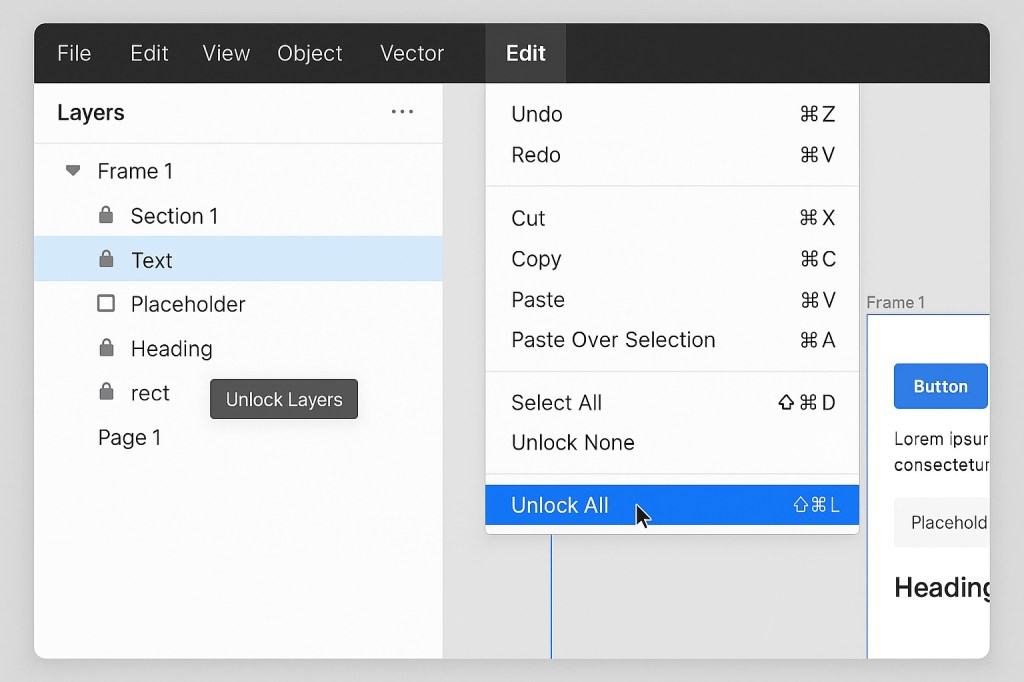
🔒 Why Layers Get Locked
Designers often lock layers to:
- Prevent accidental edits while aligning or moving elements
- Freeze background shapes or layout grids
- Protect components or templates during handoff
Locked layers are marked with a small padlock icon in the Layers panel.
✅ Method 1: Manually Unlock a Single Layer
To unlock a specific layer:
- Open the Layers panel (on the left-hand side).
- Find the layer marked with a lock icon.
- Right-click on the layer and select Unlock,
or click the small lock icon next to it.
✅ Method 2: Unlock Multiple Layers
If you have multiple locked layers:
- Select them using Shift + click or Cmd/Ctrl + click in the Layers panel.
- Right-click and choose Unlock Layers.
This lets you unlock only the selected layers without affecting others.
✅ Method 3: Unlock All Layers at Once
If you want to unlock every locked layer in your file:
- Use the top menu:
Edit > Unlock All
This will instantly remove all layer locks across the canvas. - Or use a keyboard shortcut:
On macOS: Cmd + Shift + L
On Windows: Ctrl + Shift + L
(Note: This shortcut may vary depending on your Figma settings.)
🧠 Pro Tip: Use the Layer Search
If you’re having trouble finding a locked layer in a large file:
- Use Cmd/Ctrl + / to search by layer name.
- Or type “locked” in the search bar to locate locked items faster.
🧭 Final Thoughts
Unlocking all layers in Figma is easy once you know where to look. Whether you’re freeing up just one shape or cleaning up an entire frame for edits, the Layers panel and Figma’s menu shortcuts make the process smooth. Use locking strategically to protect your designs—and unlock just as strategically to keep your workflow moving.

 Designilo