Adding glow effects to elements in your Figma design can help highlight key components, add visual interest, or simulate UI elements like light indicators. While Figma doesn’t have a built-in “glow” tool, you can easily create glowing effects using the Drop Shadow effect creatively. This article will show you how to achieve a soft, customizable glow on any shape, icon, or text in your project.
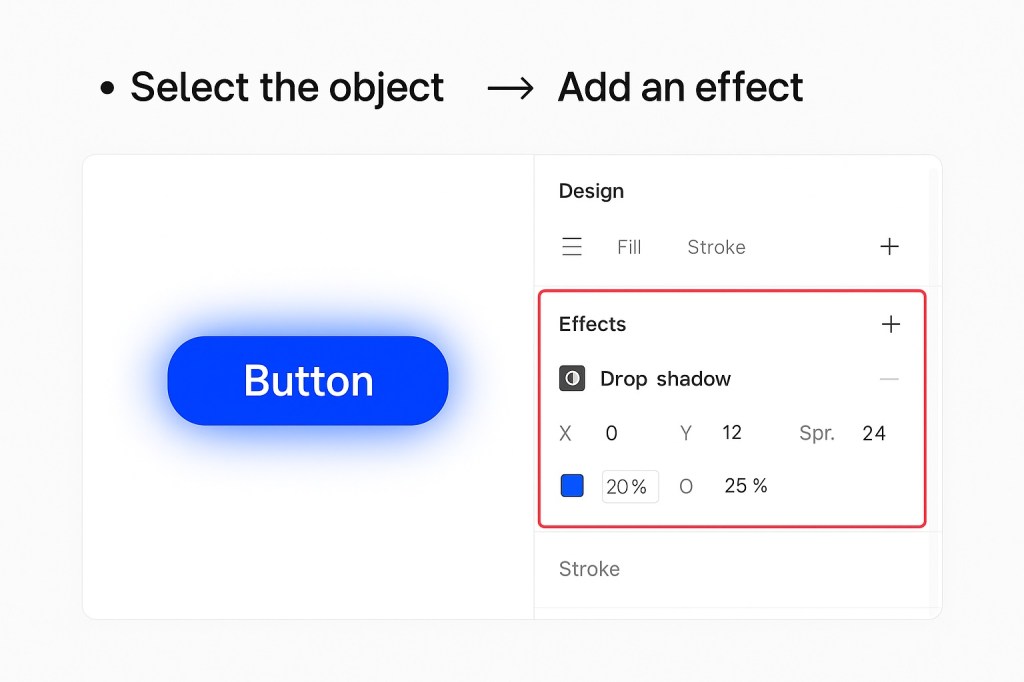
🔧 Step 1: Select the Element You Want to Glow
Click on the shape, icon, or text you want to apply the glow effect to. You can apply this to any layer in your Figma canvas.
💡 Step 2: Add an Effect
In the right-hand sidebar under the Design tab:
- Scroll down to the Effects section.
- Click the “+” (plus) icon.
- By default, a Drop Shadow will be added.
This is where the magic happens.
🎨 Step 3: Customize the Drop Shadow to Simulate Glow
Use the following settings to convert your shadow into a glow:
- Color: Choose a bright color (e.g., electric blue, neon green, or soft white). Reduce opacity to around 40–70% for a subtle glow.
- Blur: Increase the blur to 20–40px for a soft halo effect.
- X and Y Position: Set both to 0 to center the glow around the object.
- Spread: Optional—set to a low value (1–5) if you want a tighter or more intense look.
✅ Pro Tip: You can duplicate the drop shadow multiple times to intensify the glow.
🧪 Step 4: Preview and Adjust
Look at your design on the canvas or in prototype mode. Adjust the blur, opacity, or color intensity until the glow looks just right. Try testing it on a dark background for dramatic results.
✨ Creative Uses for Glow in Figma
- Emphasizing buttons or CTA elements
- Simulating lights in dashboards or smart UI
- Creating neon-style headings or logos
- Designing focus states in prototypes
🧼 Final Touches
Group the glowing object with related elements, or make it a component so you can reuse it consistently. If needed, toggle the effect off without deleting it to compare glow vs. no-glow versions.
Summary
You don’t need external plugins or hacks to add glow in Figma—just some clever styling with Drop Shadows. With the right settings, you can create polished, professional glowing effects that enhance your design.

 Designilo