Line spacing—also known as line height—is a vital part of typographic design. In Figma, adjusting line spacing helps improve readability, visual rhythm, and overall text alignment across your layouts. Whether you’re designing UI screens, marketing assets, or documents, understanding how to control line height gives you the power to fine-tune your typography with precision.
What Is Line Spacing in Figma?
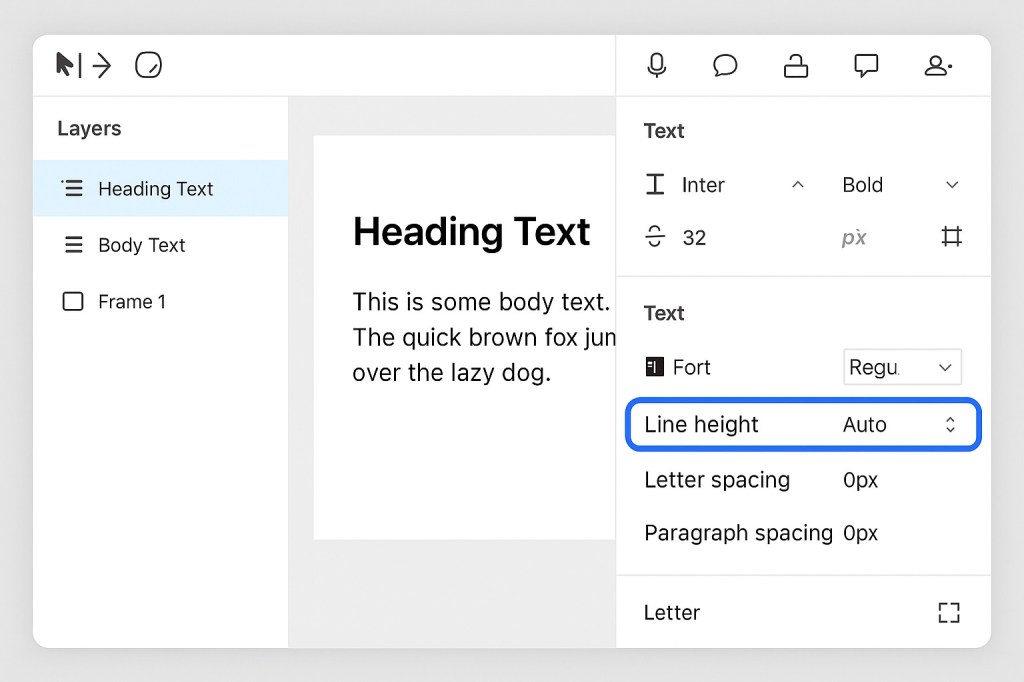
Line spacing (or line height) is the vertical distance between lines of text in a block. In Figma, this is a property you can adjust in the Text section of the right-hand properties panel. It can be set to either Auto (which uses the font’s default metrics) or a custom pixel value.
How to Change Line Spacing in Figma
1. Select Your Text Layer
Click on any text box you want to adjust. You can select it from the canvas directly or from the Layers panel.
2. Open the Text Properties Panel
Once selected, the right-hand panel will show text properties including font, size, weight, letter spacing, and line height.
3. Adjust the Line Height
Find the Line height input field:
- If it says Auto, you can click to change it.
- Type a specific value (like
20,28,40, etc.) to set the line height in pixels. - Press Enter to apply the change.
This value applies uniformly to all lines of text within the selected layer.
Best Practices for Line Spacing
- Use consistent spacing across similar text styles to maintain visual harmony.
- Increase line height for smaller fonts to improve legibility.
- Avoid setting line height too tight, especially for body text, as it makes reading difficult.
Troubleshooting Tips
- If changes don’t appear, make sure you don’t have multiple text layers selected with conflicting settings.
- Line spacing applies per text layer—if your text has multiple styles, it won’t apply per line.
Final Thoughts
Mastering line spacing in Figma helps you craft cleaner, more professional layouts. It’s a simple yet powerful tool for enhancing the legibility and aesthetics of your design. Take the time to adjust it with intention, and your typography will thank you.

 Designilo