Adding symbols in Figma is a quick way to enrich your designs with visual elements such as special characters, icons, or graphic indicators. Whether you’re using Unicode symbols, emoji, or SVG icons, Figma supports several flexible methods to include them seamlessly in your work. Here’s how to do it step by step.
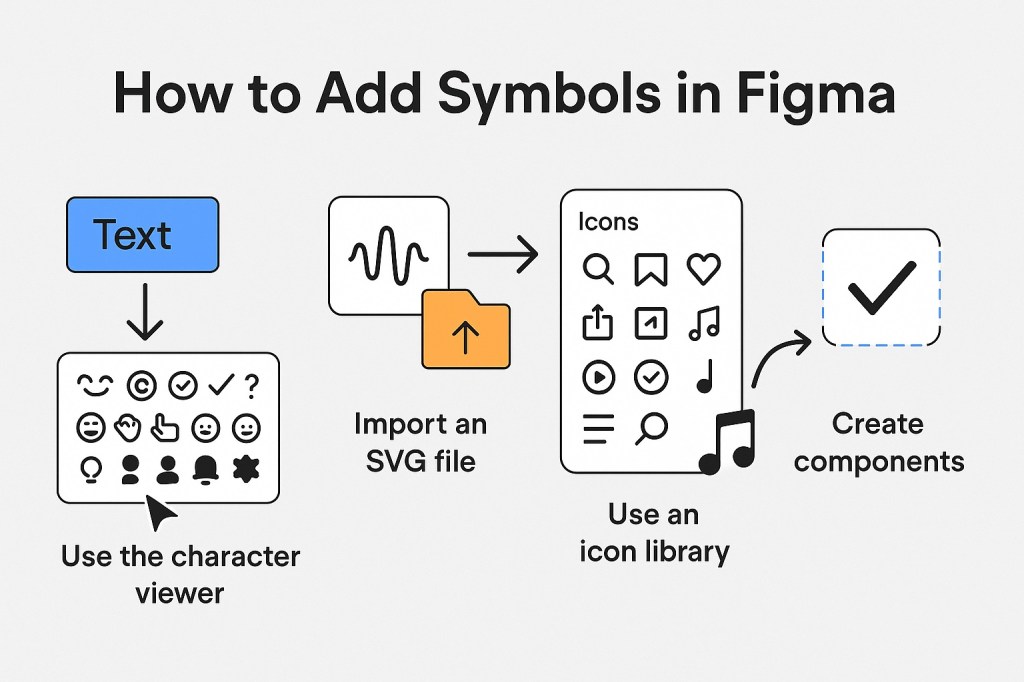
1. Using Unicode Characters and Emoji
Figma supports Unicode, which means you can insert characters like ©, ✓, ∞, or emojis 😄 directly into text layers.
Steps:
- Select the Text Tool (T) and click anywhere on the canvas.
- Open your system’s character viewer:
- Mac: Press
Control + Command + Space. - Windows: Press
Windows Key + .(period) orWindows Key + ;.
- Mac: Press
- Search for and click on the symbol or emoji you want to insert.
- It will appear in the text box as part of the layer.
💡 Tip: You can also copy and paste symbols from websites like Unicode Table or Emojipedia.
2. Importing Icons as SVG Files
If you need more complex symbols (like icons or custom graphics), importing SVG files is the way to go.
Steps:
- Download your SVG icon from a library like Feather Icons, Heroicons, or Material Icons.
- Drag the SVG file directly into your Figma canvas.
- Figma automatically converts it into editable vector shapes.
You can then recolor, resize, or convert them into components.
3. Using Figma Icon Libraries
Many icon sets are available as Figma community files.
Steps:
- Go to the Figma Community tab.
- Search for icon sets (e.g., “Feather Icons,” “Tabler Icons,” “Font Awesome”).
- Click Duplicate to add the library to your workspace.
- Copy the desired icon from the duplicated file and paste it into your own project.
This method gives you editable, scalable, and pre-styled components you can reuse.
4. Convert Symbols Into Components
Once you’ve added a symbol or icon, convert it into a component for consistent reuse.
Steps:
- Select the symbol or icon.
- Right-click and choose Create component (or press
Command + Option + K/Ctrl + Alt + K). - Rename the component clearly (e.g., “Checkmark Icon”).
Now you can use instances of that component anywhere in your file.
Final Thoughts
Whether you’re working on user interfaces, presentations, or marketing assets, symbols and icons play an essential role in visual communication. With Figma, you can easily insert and manage symbols using text, vector shapes, or community libraries. Combine them with components and variants to keep your designs scalable and organized.

 Designilo