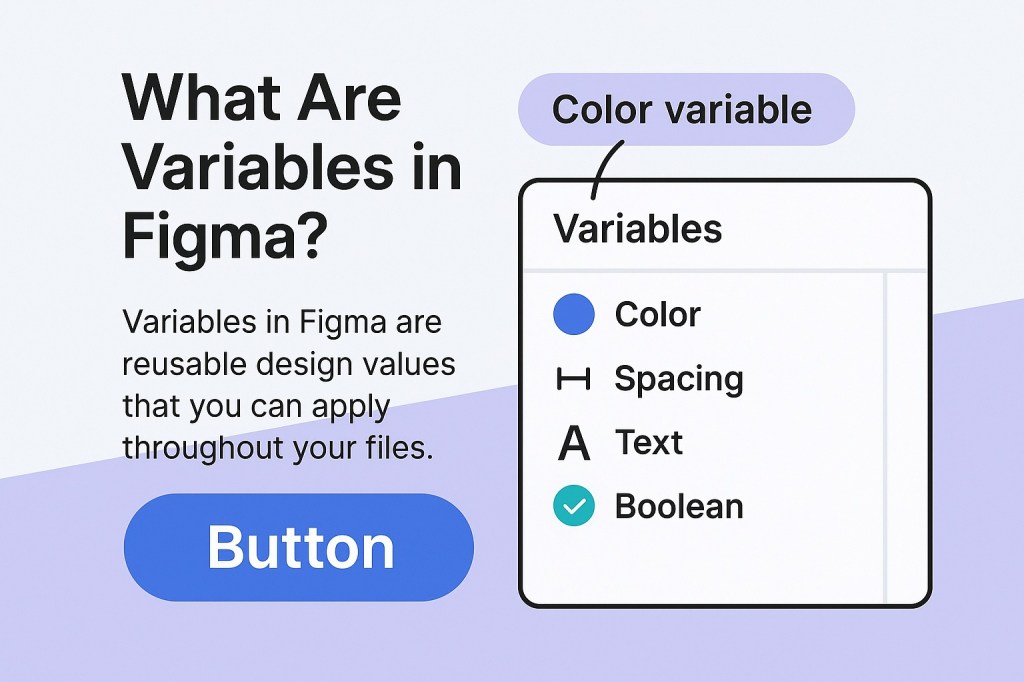
Variables in Figma are one of the most powerful features introduced to enhance design system workflows. They allow you to define reusable values—such as colors, font sizes, spacing units, text strings, or even booleans—and apply them consistently across your entire design. With variables, you can achieve consistency, reduce manual updates, and make your design files easier to scale and maintain.
Why Use Variables in Figma?
Before variables, maintaining design consistency across large files or multi-brand systems was tedious. Any global change, like updating a color or padding size, had to be done manually or with careful search-and-replace tactics. With variables, a single change can cascade through your file automatically.
Use cases include:
- Switching between light and dark themes
- Localizing content using text string variables
- Managing responsive spacing
- Setting consistent typography
- Prototyping with boolean states (like toggles)
Types of Variables in Figma
Figma currently supports four types of variables:
- Color – Define colors like
Primary,Surface, orBackground, and apply them to fills, strokes, and effects. - Number – Use numbers for things like spacing, padding, font sizes, border radii, or layout grids.
- String – Assign text like button labels or placeholder content, especially useful for localization.
- Boolean – Represent toggle states such as
true/false,enabled/disabled, orvisible/hidden.
How to Create and Use Variables
- Open the Variables Panel: Click on the local styles panel and switch to the “Variables” tab.
- Create a Collection: Variables are grouped into collections. You might have one for Light Theme, another for Dark Theme, etc.
- Define Variables: Add color swatches, numbers, strings, or booleans and give each a descriptive name.
- Apply Variables: Select an element and apply a variable instead of a fixed value—for example, set a button’s fill to
Primary Color.
Using Modes for Theming
Modes let you create different versions of your variable sets—perfect for themes. For instance, you might have a Primary Color variable with a light mode value of #FFFFFF and a dark mode value of #000000.
To toggle themes, switch the mode applied to your file or components.
Variables in Prototyping
Variables go beyond static design—they’re powerful in Figma’s prototyping. You can:
- Use conditions based on boolean values
- Switch values when an interaction happens (e.g., change the label of a button on click)
- Pass data between screens
This brings Figma closer to low-code tools, allowing for smarter, more contextual prototypes.
Best Practices
- Name clearly: Use consistent naming like
spacing-sm,text-heading, ortheme.primary. - Group logically: Separate collections by theme, purpose, or platform.
- Use tokens when possible: Tokens (like colors or spacing) should always reference variables for easier scaling.
Final Thoughts
Variables in Figma are a game-changer for anyone managing large-scale design systems, working across themes, or building interactive prototypes. By introducing reusable and switchable values, they make your workflow more consistent, scalable, and dynamic. Whether you’re working solo or across teams, mastering variables will significantly upgrade your Figma practice.

 Designilo