If you’ve ever opened a Figma file during a team working session and been greeted by a swarm of floating names and colored cursors, you’ve seen MCP in action. But what exactly is the MCP Cursor, and why is it gaining so much attention?
Let’s unpack this trending term and show you how to use Figma’s real-time collaboration features to your advantage—without letting them drive you crazy.
🧠 What Does MCP Mean in Figma?
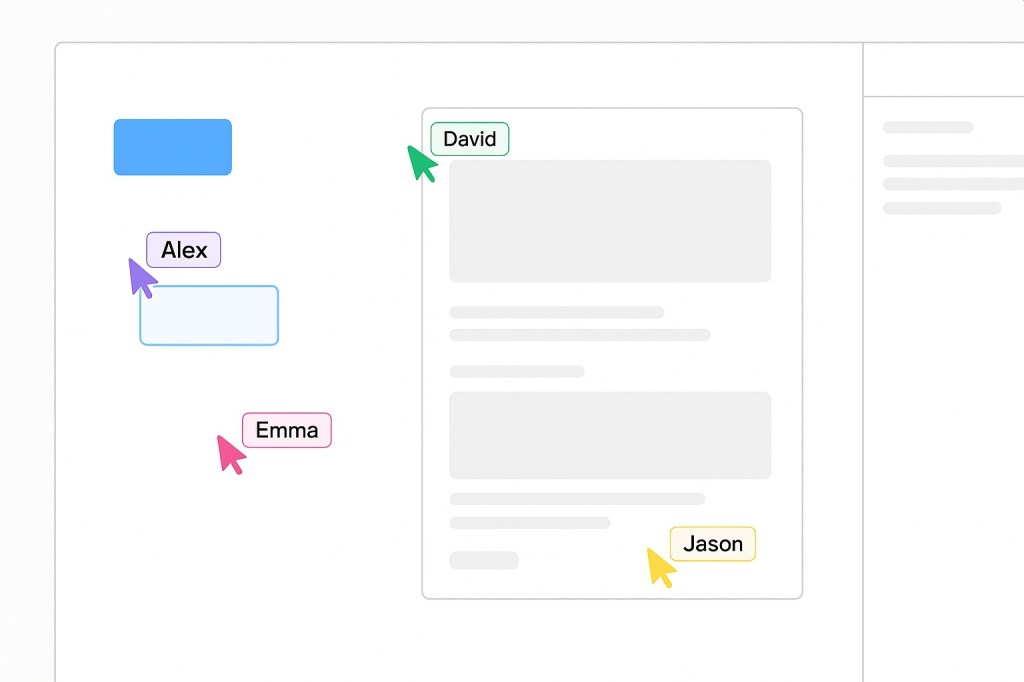
MCP stands for Multi-Cursor Presence. It’s not an official term in the Figma UI, but it’s commonly used in release notes, plugin documentation, and community chatter to refer to those colorful cursors that represent other people in the file.
Each person editing or viewing a Figma file is assigned a unique cursor and color, with their name floating beside it. As they move through the canvas, so does their cursor—showing where they are and what they’re doing in real time.
👀 Why MCP Is Useful (and Sometimes Overwhelming)
The Multi-Cursor Presence system is one of Figma’s secret weapons for seamless collaboration. It’s especially useful when:
- Reviewing files together on a call
- Pair designing or pair coding in Dev Mode
- Teaching or onboarding a junior designer or engineer
- Running critiques or design reviews
But it can also get crowded—fast. In large teams, you might see 15+ cursors flying around, creating a distraction or blocking your view.
⚙️ How to Control MCP Cursor Visibility
Want to focus without the clutter? Here’s how to manage MCP in Figma:
1. Hide Cursors from Others
Click your avatar in the top-right corner of Figma, and you’ll see the option to “Hide Cursors”. This hides other people’s cursors, not your own.
🧩 Pro Tip: This only hides cursors for you. It doesn’t affect how others see you.
2. Observe Collaborators (Without Interrupting)
Click on someone’s avatar to follow them. Figma locks your viewport to theirs—great for presentations or design reviews.
3. Use Dev Mode for Cleaner Handoff
In Dev Mode, MCP still works, but it feels less invasive. Cursors appear only when someone’s actively interacting, and the view is more focused on specs, not canvas movement.
🚧 Limitations and UX Quirks
- No customization yet: You can’t change your cursor color or label.
- No “ghost mode”: There’s no way to be invisible while editing.
- Cursors persist even if inactive for a short while, which can be confusing.
🧩 When to Embrace It, When to Hide It
Use MCP to your advantage when:
- Collaborating live
- Doing design critiques
- Sharing your screen for walkthroughs
But toggle it off when:
- Doing deep work
- Presenting to a client
- Reviewing a design solo
💡 Final Thoughts: It’s More Than a Cursor
The MCP Cursor might seem like a small UI feature, but it reflects a bigger shift: design and development are now real-time, collaborative, and cross-functional. The better you understand presence in Figma, the smoother your team’s workflow will be.
Whether you call it “MCP,” “live cursors,” or “collaboration mode,” one thing’s clear: your cursor is now part of the conversation.

 Designilo