Branching isn’t just for developers anymore.
Figma’s branching system brings version control, experimentation, and safe iteration to the design world—without needing Git. If you’re part of a team managing a complex design system or working in parallel with others, branching is about to become your new best friend.
Let’s break down how design branching works in Figma, and how to use it like a pro.
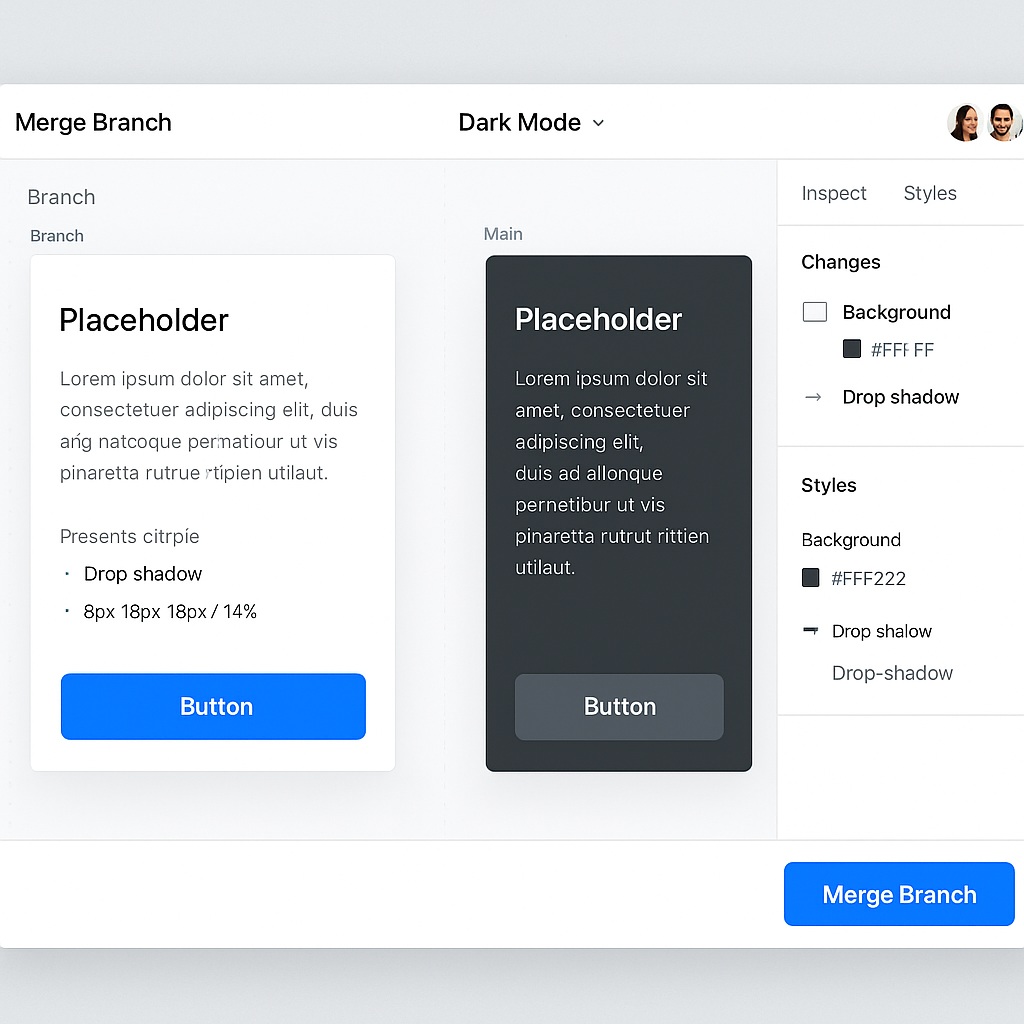
🌿 What Is Branching in Figma?
A branch in Figma is a separate version of a file or component library where you can safely:
- Explore new ideas
- Make large changes
- Collaborate without breaking the main file
When you’re done, you can merge your branch back into the main file—just like in software development.
🧠 Why Branching Matters
Without branching, collaboration can get messy fast:
- Changes overwrite each other
- Experiments clutter live files
- Design systems break when tokens or components get changed mid-project
Branching solves this by giving each contributor a sandbox that’s still connected to the core file.
🔁 The Basic Workflow
- Create a Branch
- Click the down-arrow next to the file name → “Create Branch”
- Name it clearly:
Add-New-Nav-Header,Dark-Mode-Refresh, etc.
- Design Safely
- Tweak components
- Try new layouts
- Break stuff—you’re in a separate branch
- Review + Compare
- Figma shows a side-by-side diff of changes
- View by page, component, or property
- Merge
- Merge cleanly into
main - Resolve conflicts if someone else edited the same item
- Merge cleanly into
🧩 What You Can Use Branching For
| Use Case | Example |
|---|---|
| New features | Design a new component or interaction |
| Refactoring components | Clean up a button library |
| Theming experiments | Apply new token modes to layouts |
| Dev feedback integration | Adjust designs without affecting live work |
| QA or accessibility review | Test color contrast, alt text, etc. |
🔒 What Branching Does (and Doesn’t) Protect
✅ Keeps your edits isolated
✅ Prevents overwriting live libraries
✅ Lets reviewers preview changes safely
❌ Doesn’t version individual elements (no “undo merge”)
❌ Doesn’t automatically resolve all merge conflicts (you’ll need to review)
👨💻 Think Like a Developer: Best Practices
- Name branches clearly:
feature/button-refreshbeatstest123 - One branch per task: Avoid “everything-changes” branches
- Merge early, merge often: Don’t let branches get stale
- Use branching for system work: Great for tokens, variables, modes
💬 Final Thoughts: Design Is Becoming More Like Code
As design systems grow in complexity, workflows like branching help teams stay organized, scalable, and safe.
Figma branching gives you the freedom to explore—with the control to deploy safely.
It’s time to stop being afraid of breaking the file.
Branch it. Build it. Merge it.

 Designilo