Figma’s Dev Mode isn’t just for engineers. Sure, it’s packed with specs, tokens, and code-friendly views—but savvy designers are using Dev Mode to streamline handoff, spot inconsistencies, and communicate better with devs.
If you’ve ignored that little “Dev Mode” toggle, this post is your invitation to give it a second look.
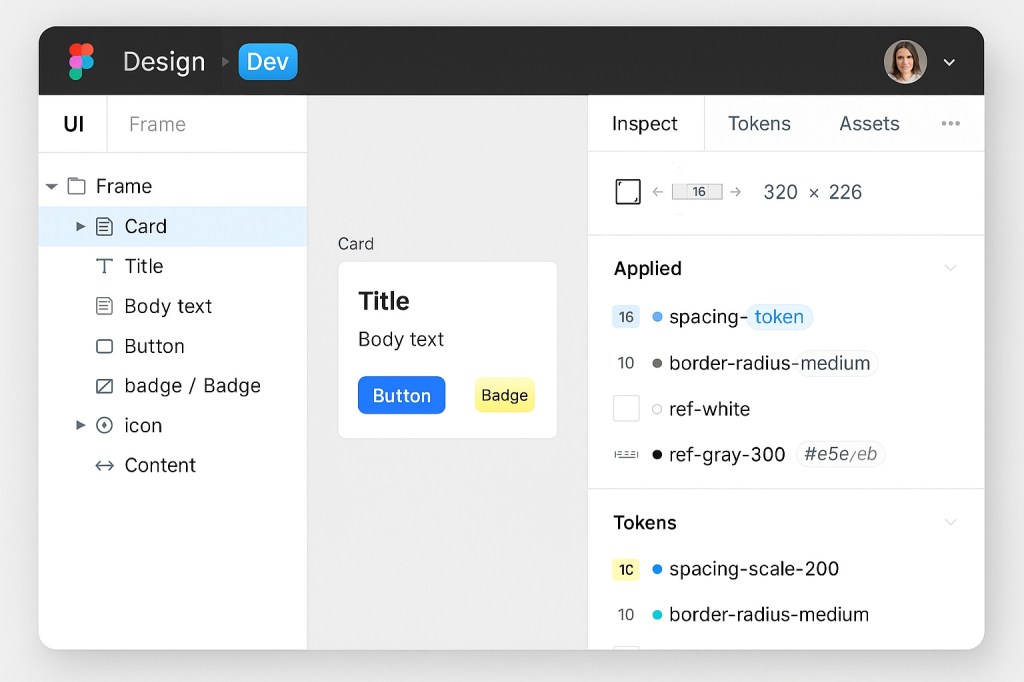
🔍 What Is Dev Mode, Really?
Dev Mode is a specialized view in Figma built for developers inspecting designs. It strips away visual noise and gives easy access to:
- Design tokens
- Variables
- Dimensions & spacing
- Code-friendly properties
- Asset download links
But here’s the thing: designers can use Dev Mode too—to make their work cleaner, clearer, and more developer-friendly.
💡 Why Designers Should Use Dev Mode
1. Catch Token Inconsistencies Early
Switching to Dev Mode reveals which tokens are applied and where they’re missing. If your “Primary Button” has hardcoded hex values instead of variables, you’ll catch it before a dev flags it.
2. See What Developers Actually See
Want to know what will trip up your engineer? Step into their shoes. In Dev Mode, you’ll see:
- Ambiguous spacing
- Unnamed layers
- Missing components
- Redundant variants
Fix them before handoff—and save yourself a Slack thread later.
3. Prep Files for Clean Handoff
You can toggle Dev Mode while finalizing your design and:
- Label frames properly
- Clean up structure
- Ensure tokens and variants are applied
- Check accessibility properties like alt text or semantic roles
🧰 Key Features Designers Should Explore
| Feature | What It Shows | Why It Matters |
|---|---|---|
| Inspect panel | Spacing, sizes, border radius, etc. | Validate layout logic |
| Tokens view | Applied variables | Spot missing or incorrect tokens |
| Assets tab | Downloadable images/icons | Ensure everything is exported properly |
| Section indicators | Page structure for devs | Helps with component navigation |
🔄 Dev Mode + Variables = Handoff Harmony
Designers using variables and modes can now see exactly how those values map to tokens and themes in Dev Mode.
It’s no longer enough to say “this is the dark theme.” Dev Mode shows whether your dark mode uses the correct semantic tokens (e.g. color-bg-primary) instead of raw hex values.
🤝 Dev-Ready Design Means Shared Responsibility
Figma isn’t a relay race anymore—it’s a shared track. And Dev Mode makes sure designers aren’t just handing off work, but co-owning the design-to-build process.
Use Dev Mode during:
- Design QA
- Internal reviews
- System audits
- File cleanup sprints
✨ Final Thoughts: Don’t Wait for the Developer to Find It
The best designers today aren’t just visual thinkers—they’re system thinkers.
Using Dev Mode early lets you think like a developer, reduce churn, and ship polished designs that developers can trust.
So flip that switch. Your future self (and your dev team) will thank you.

 Designilo