You’re deep in a design file. Suddenly, a yellow cursor named “Alex (Frontend)” appears near your component. They click, inspect your token, and leave a comment—all in real time. You didn’t have to share your screen. You didn’t even need a meeting.
Welcome to the Live Cursor UI in Figma—a subtle but powerful shift in how designers and developers work together.
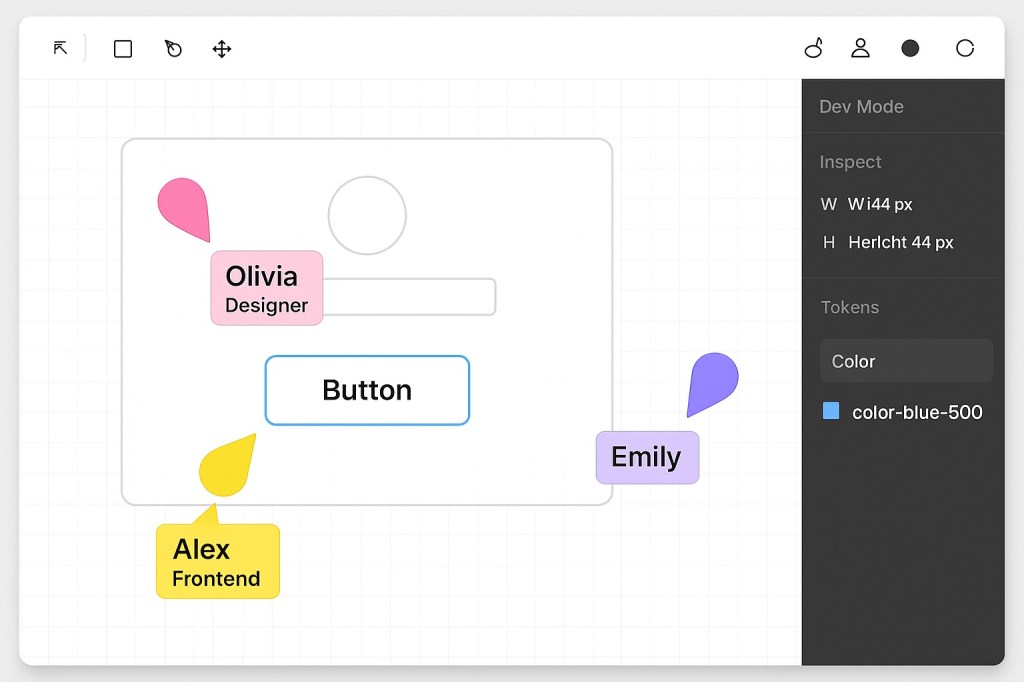
🧭 What Is the Live Cursor UI?
Figma’s Live Cursor UI (aka Multi-Cursor Presence or MCP) shows every person currently viewing or editing a file as a floating cursor with their name. Each person gets a unique color, and their cursor reflects exactly where they are on the canvas.
It’s like Google Docs—but for design systems, dev specs, and prototypes.
🧠 Why It Matters for Design–Dev Handoff
The cursor isn’t just about presence. It’s a real-time insight into intention. When a developer’s cursor is near a component, you know:
- They’re inspecting it
- They might need clarity
- They could be prepping for build
And when a designer’s cursor is near a breakpoint or token, it signals active iteration.
This low-friction visibility is critical when:
- Designers and devs are working asynchronously
- Teams are split across time zones
- Handoff involves complex token logic or variants
🔍 Dev Mode + Live Cursor = Superpower
Figma’s Dev Mode elevates this to the next level:
- Live cursors appear only during active interaction, not passive viewing.
- Devs can inspect, copy CSS, or see token definitions in the same file, live.
- You can follow a dev’s cursor to troubleshoot issues or explain design logic.
This is no longer a “handoff”—it’s co-building in real time.
💬 Cursors and Conversation
Figma’s live cursor UI also works beautifully in:
- Design reviews: Follow a product manager as they navigate.
- Bug reports: Watch QA point out the issue visually.
- Remote onboarding: Let juniors follow a senior’s cursor across the system.
It replaces the need for clunky screen sharing, version confusion, or “Where are you in the file?” Slack messages.
🧩 What It Doesn’t Do (Yet)
- No way to make your cursor invisible
- No control over cursor color
- No hover-based chat (yet!)
Still, the foundation is there—and teams are already using it creatively.
🧠 How to Make the Most of It
- Use Follow Mode to walk others through flows
- Ask devs to point with their cursors instead of screenshots
- Hide cursors when focusing, show them when reviewing
🧭 Final Thoughts: The Cursor Is Now a Channel
Figma’s Live Cursor UI turns the humble pointer into a communication layer.
It’s no longer just a tool to click—it’s a sign of focus, feedback, and intent.
Design and development used to be handoff. Now, they’re collaboration in motion—and it all starts with the cursor.

 Designilo