Prototyping used to be a glorified slideshow. But in today’s product design workflows, prototypes need to feel real—not just look real.
Figma has quietly become one of the most powerful prototyping tools on the market. With features like Smart Animate, interactive components, overlays, and Dev Mode, you can now create user flows that mirror production behavior—and developers can build directly from them.
Here’s how to make your prototypes work harder, faster, and smarter in Figma.
⚙️ What Prototyping in Figma Really Does
Figma’s prototyping engine lets you:
- Link screens and frames
- Trigger animations and transitions
- Build component-level interactivity
- Preview flows on desktop and mobile
- Export for testing or dev handoff
But modern prototyping goes beyond transitions—it’s about UX logic, microinteractions, and handoff clarity.
💡 The New Prototyping Stack in Figma
Let’s look at the tools you should be using:
| Feature | Use Case |
|---|---|
| Smart Animate | Smooth transitions between states (e.g. toggles, sliders, dropdowns) |
| Interactive Components | Create reusable, stateful buttons, tabs, toggles |
| Overlays | Tooltips, modals, lightboxes, sticky headers |
| Variables + Modes | Dynamic content based on inputs or themes |
| Scroll + Sticky | Fixed headers, scroll-to sections, parallax effects |
These features help you build flows that feel shippable—not just decorative.
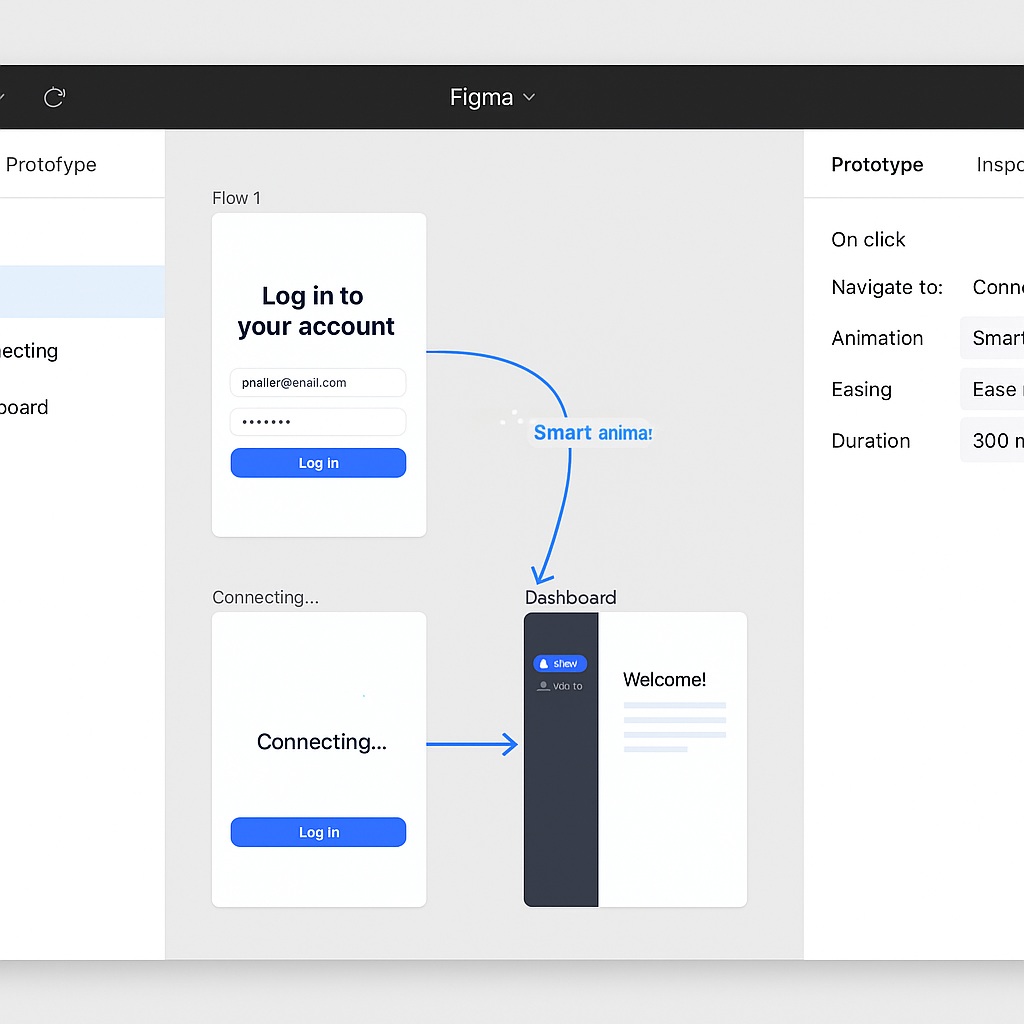
🧩 Example: Prototyping a Real Login Flow
Imagine this flow:
- User enters email → Button becomes enabled
- Click → Show spinner → Then route to dashboard
- If email invalid → Show error toast
You can build this in Figma using:
- Component properties for input states
- Variants for error vs. success
- Smart Animate for loading spinner
- Overlay for toast notifications
- Flow Start markers for dev clarity
And when Dev Mode is enabled, the dev sees every state, token, and animation spec.
🎯 Why Devs Love Real Prototypes
Prototypes that reflect actual logic reduce ambiguity. Instead of saying:
“The button should change color and animate…”
You can show it.
This eliminates:
- Guesswork during handoff
- Back-and-forth spec questions
- Misaligned UX expectations
👨🔬 Tips to Make Your Prototypes Production-Ready
- Use tokens for colors, spacing, motion
- Stick to system components with states built in
- Preview flows in Dev Mode for clarity
- Avoid one-off animations that won’t translate to code
- Label your frames and flows clearly
🤝 Handoff Tip: Pair Prototypes with Dev Mode
Once your prototype is polished, switch to Dev Mode:
- Developers can inspect spacing, variables, and interaction details
- They’ll see what’s animated and what’s static
- You can link a flow directly to the dev spec
This tightens the loop between UX and implementation.
💬 Final Thoughts: Real UX Begins in the Prototype
Figma has erased the line between mockup and mock interaction. With the right tools and mindset, you’re not just prototyping visuals—you’re designing the experience itself.
So next time you share a file, don’t just say “click through this.”
Build something they’ll feel.

 Designilo