AI is reshaping how we design—but in a tool like Figma, where precision and personality matter, letting AI take the wheel feels risky. What if it designs something generic? What if it removes the creative spark?
The good news: You don’t have to surrender control to get the benefits.
Let’s explore how to use AI inside Figma workflows—with intent, strategy, and your creativity firmly in the driver’s seat.
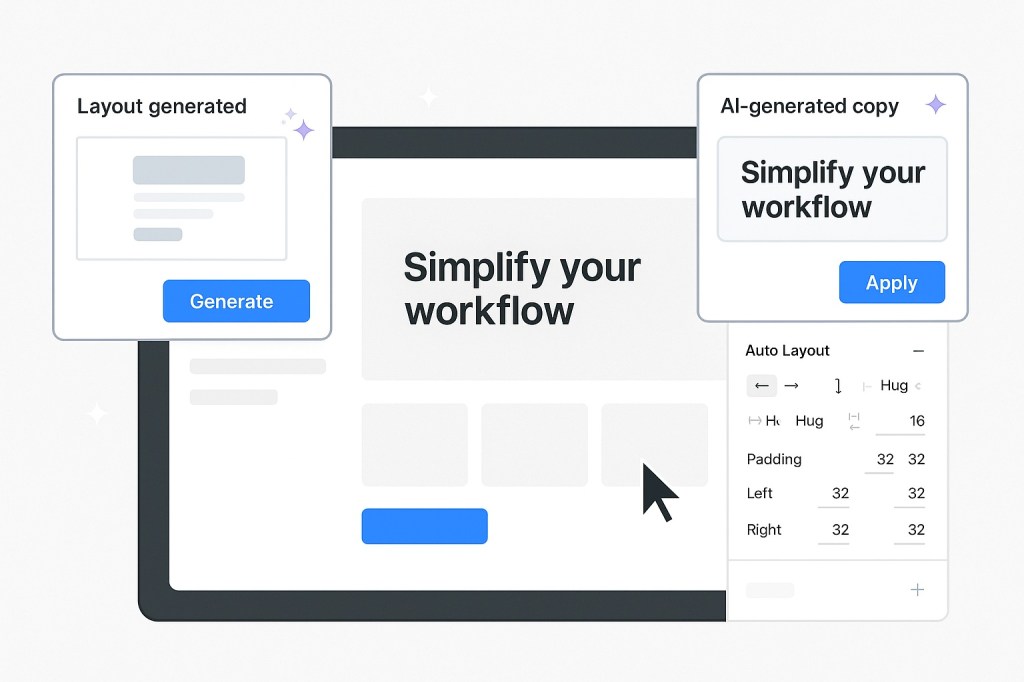
🔮 The Rise of AI in Figma Workflows
AI is showing up in Figma through:
- Native features (e.g. autocomplete text, suggested layers, and layout aids)
- Plugins like Magician, Diagram AI, and Genius UI
- Third-party tools like Locofy, Anima, and Uizard that convert designs into code using AI
Instead of replacing designers, these tools aim to boost productivity, unblock creativity, and automate the repetitive parts of interface design.
🎯 When to Use AI in Your Figma Workflow
Here are some great use cases where AI can help without diluting your creative input:
1. Rapid Ideation
Use AI to:
- Generate wireframe layouts
- Explore multiple UI options fast
- Brainstorm microcopy or empty state text
🧠 Tip: Treat AI outputs like a mood board—not a final product.
2. Content Placeholder Magic
Instead of “Lorem Ipsum,” tools like Magician can write contextual text for:
- Error messages
- Tooltips
- Product descriptions
- Onboarding flows
It’s faster and often better than filler—but always review and revise.
3. Generating Variants or States
AI can suggest multiple visual states of a component:
- Hover
- Pressed
- Disabled
- Success/error
Use this to expand your component library with speed, but apply your own design logic afterward.
4. Design QA & Consistency
Plugins like Diagram help identify:
- Misaligned elements
- Inconsistent padding
- Style violations
- Unnamed layers or frames
This is AI as your design assistant, not art director.
🚫 When NOT to Use AI
AI should support, not substitute. Avoid using it for:
- Branding decisions (logos, core colors, brand voice)
- Key layout structure without reviewing hierarchy
- UX flows that require human empathy or accessibility nuance
Remember: **AI doesn’t know your users—**you do.
🎨 How to Stay in Control
Here’s how to use AI responsibly and creatively in Figma:
| Principle | What It Means |
|---|---|
| Curate, don’t copy | Pick ideas, remix them, but own the output |
| Always adjust | Refine text, spacing, and tone for brand consistency |
| Layer AI with human judgment | Combine suggestions with your UX experience |
| Use versioning | Use branching or page duplication before applying AI changes |
🧩 The Best AI Plugins for Figma (Mid–2025)
- Magician – Text and UI generation with GPT-like prompts
- Diagram – Visual analysis, auto-layout, and accessibility checks
- Genius UI – Generate components with customizable themes
- Wireframe Designer AI – Generate low-fi layouts instantly
- DesignGPT – UI ideas from text prompts, good for concepting
💬 Final Thoughts: Augmentation, Not Automation
AI in Figma isn’t here to replace you—it’s here to remove the tedious bits so you can focus on what only humans can do: solve problems, feel emotions, and design with purpose.
If you’re curious but cautious, start small. Let AI generate a tooltip, explore a layout, or clean up spacing. Then bring your taste, judgment, and insight—because that’s where the magic happens.

 Designilo