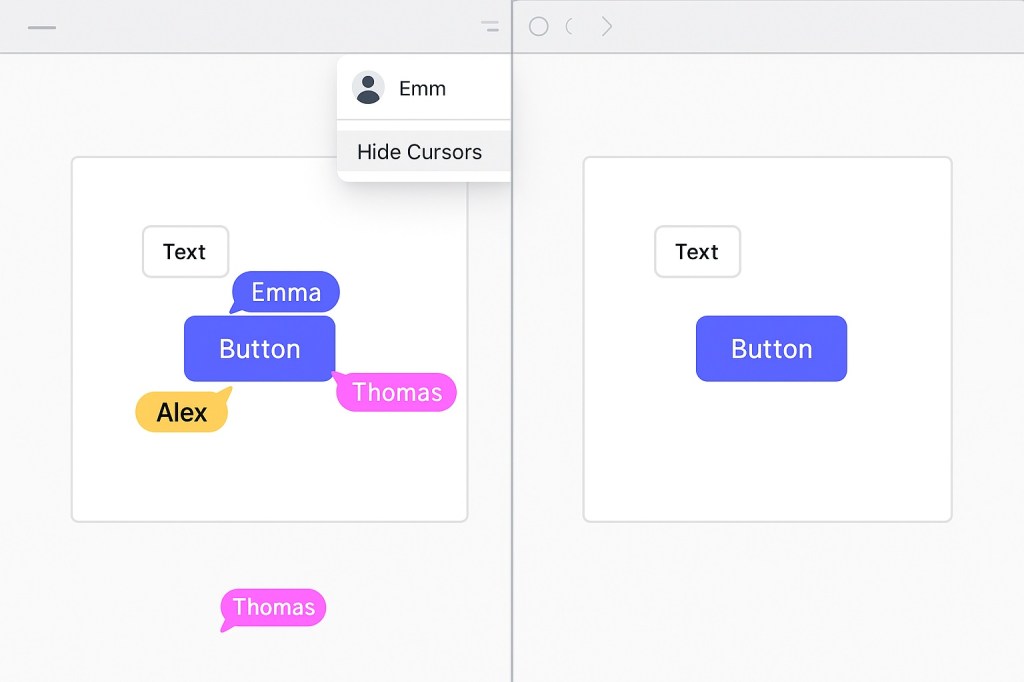
In Figma, your cursor is more than a pointer—it’s a presence. But when your canvas starts to look like a laser light show of floating names and colored arrows, it’s tempting to hide them all and reclaim your peace.
So, should you hide cursors? And if so—when?
Let’s break it down with real-world use cases and team dynamics in mind.
🧠 Why Figma Shows Other People’s Cursors
Figma’s Multi-Cursor Presence (MCP) feature shows everyone’s cursors in real time so that:
- You can tell who’s in the file
- You can see where their attention is
- You can follow someone’s flow without interrupting them
It’s especially helpful for:
- Pair design sessions
- Developer handoff
- Async design reviews
- Remote onboarding
❌ But When Is It Too Much?
There are times when cursors add noise instead of value. Think:
- 🔄 Rapid design changes during a work sprint
- 🔍 Heads-down pixel-pushing
- 📊 Final QA before handoff
- 🎯 High-focus editing of design tokens or styles
In these cases, MCP becomes more of a distraction than a benefit.
✅ How to Hide Cursors (In Case You Missed It)
It’s simple:
- Click your avatar in the top-right corner of Figma.
- Select “Hide Cursors.”
This hides everyone else’s cursors—but only for you.
🧭 When You Should Keep Cursors On
Despite the visual clutter, there are moments when cursors are crucial for context:
| Situation | Keep Cursors On? | Why |
|---|---|---|
| Pair designing | ✅ Yes | See what your partner is editing in real time. |
| Developer reviewing your layout | ✅ Yes | Help them follow along and understand hierarchy. |
| Team critiques | ✅ Yes | Know who’s referencing what. |
| Async inspection or feedback | ✅ Yes | Cursor movement shows engagement and focus. |
🧩 A Middle Path: Use Follow Mode
If one person is presenting or reviewing, others can click their avatar to follow them. It’s like shared screen navigation, but inside the Figma file.
This creates intentional focus—less cursor chaos, more guided collaboration.
🧘 Final Thoughts: The Cursor Reflects Your Intent
The cursor might seem like a minor UI feature, but in a collaborative tool like Figma, it acts like a live status signal. Whether you show it or hide it should depend on your working mode.
- In solo mode? Hide away.
- In team mode? Keep the lights on.
Either way, you’re in control—and now, you know how to use cursors with purpose.

 Designilo