Effects in Figma—like shadows, blurs, and layer styles—can bring your designs to life. But recreating those effects manually each time? A waste of time.
Whether you want to reuse a drop shadow on another button or apply the same background blur to multiple cards, Figma offers simple ways to copy effects from one element to another.
In this guide, you’ll learn:
- What “effects” are in Figma
- How to copy them using keyboard shortcuts and menus
- How to reuse them using Styles
- Pro tips to avoid common mistakes
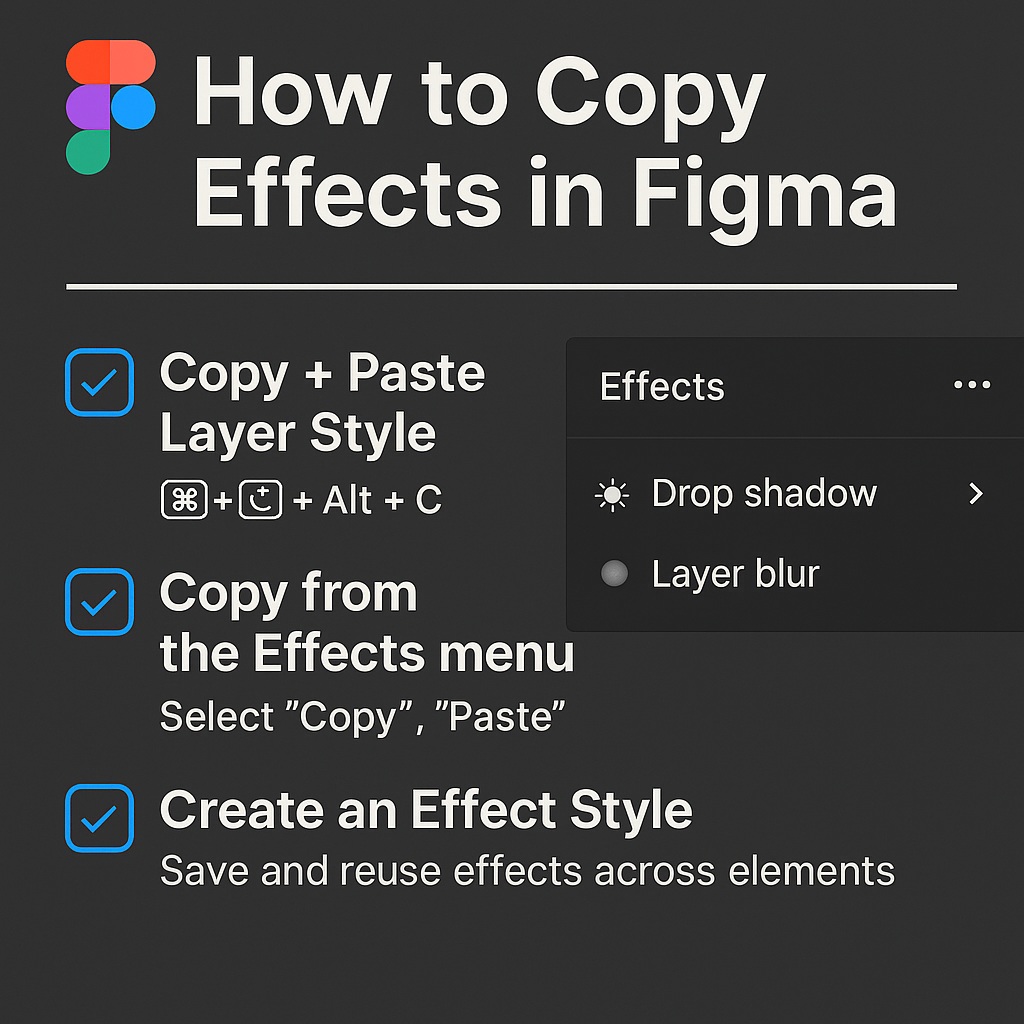
✨ What Are Effects in Figma?
In Figma, Effects are visual treatments you can apply to layers, including:
- Drop Shadow
- Inner Shadow
- Layer Blur
- Background Blur
You can stack multiple effects and adjust their properties like opacity, direction, color, and blur radius—all from the right-hand panel under the “Effects” section.
✅ How to Copy Effects in Figma
🔹 Option 1: Copy + Paste Layer Style (Recommended)
- Select the object with the effect(s) you want to copy
- Press Cmd/Ctrl + Alt + C (Copy Layer Style)
- Select the target object
- Press Cmd/Ctrl + Alt + V (Paste Layer Style)
This copies all visual styles—fill, stroke, and effects.
💡 If you only want the effect and not the fill or stroke, use Option 2 below.
🔹 Option 2: Manually Copy Just the Effect
If you don’t want to override fill or stroke:
- Select the original layer
- In the Effects section, click the “…” (more options)
- Choose “Copy”
- Select your target layer
- In its Effects section, click “…” and choose “Paste”
This way, only the effect is transferred—useful for keeping other layer properties intact.
🔹 Option 3: Drag from the Layer Panel (Quick Hack)
You can also drag styles between layers in the right panel:
- Open both layers’ Effect panels
- Click and drag the effect from one to another
- Figma applies the exact settings
This works best for quick copying between two nearby layers.
🧰 Using Shared Effect Styles
If you’re reusing an effect across many layers (e.g., a consistent drop shadow or card blur), save it as a Style.
How to Create an Effect Style:
- Select the layer with the effect
- In the Effects section, click “+” to add an effect (if not already applied)
- Click the four-dot icon (Style)
- Click “+ Create style”
- Name it (e.g.,
Shadow/CardorBlur/Background) - Apply the style to other elements
This ensures consistency and makes updating global shadows or blurs easy.
🧼 Best Practices When Copying Effects
- Rename styles clearly: Use categories like
Shadow/CTA,Blur/Overlay, etc. - Use styles for consistency: Especially across design systems and multiple pages
- Don’t stack unnecessary effects: Clean up unused layers to avoid performance issues
- Avoid copying from detached components: Stick with linked styles for system reliability
🚫 What Not to Do
- ❌ Don’t copy effects by recreating them manually—it’s inefficient and error-prone
- ❌ Don’t apply multiple shadows in separate layers—Figma supports stacked shadows on one layer
- ❌ Don’t detach components just to change effects—override or use variants instead
✨ Summary: Copy Effects in Figma Like a Pro
| Task | Best Method |
|---|---|
| Copy all styles (fill, stroke, effects) | Cmd/Ctrl + Alt + C / V |
| Copy only effects | Use “…” menu > Copy/Paste |
| Reuse effect across many layers | Create and apply Effect Styles |
| Apply consistent look in system | Use tokens and variables with styles |
Effects can transform your interface—from subtle shadows that create depth to soft background blurs that elevate your design. And copying them shouldn’t slow you down.
For more Figma power tips and workflow tricks, check out Designilo.com.

 Designilo