Figma’s Variables feature gives design systems superpowers. You can centralize your color tokens, spacing values, typography scales, and even booleans—all ready to swap across themes and brands.
But what if you need to copy variables from one file to another? Whether you’re building a new project, setting up a multi-brand system, or cleaning up old libraries, this guide walks you through the right way to move Figma variables.
🧠 What Are Variables in Figma?
Variables are reusable values that replace hardcoded properties like:
- 🎨 Colors (e.g.,
color.background.default) - 📐 Spacing (e.g.,
spacing.8) - 🔤 Typography (font sizes, line heights)
- ✅ Booleans (used for theming or conditional states)
- 🌓 Modes (e.g., Light/Dark, Brand A/B)
Instead of entering values manually, you reference variables in your components and styles—making them easy to update, scale, and theme.
✅ How to Copy Variables from One Figma File to Another
Variables don’t automatically transfer between files like components or styles. You need to either publish and import them (best for teams) or manually duplicate them (for solo work).
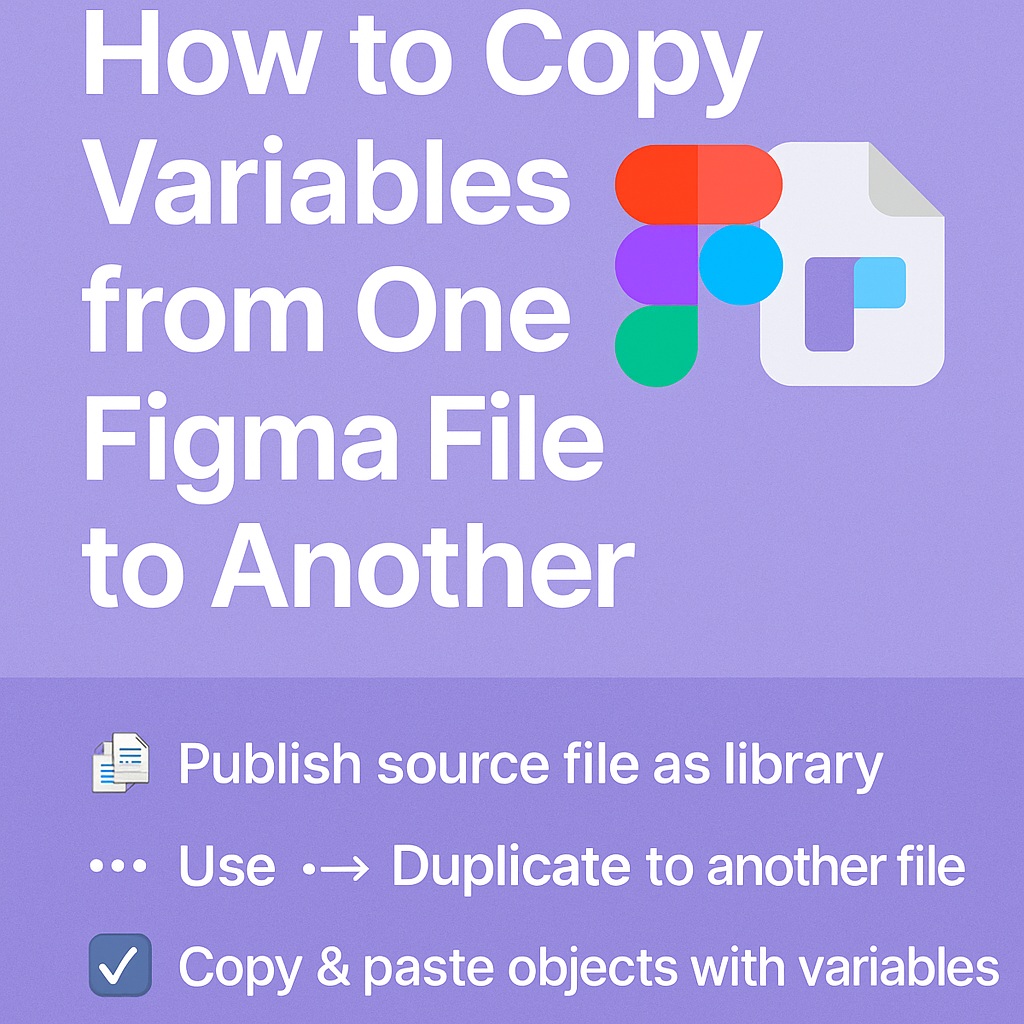
🔹 Option 1: Copy via Published Library (Best Practice)
If you’re managing a design system:
- Go to the source file with the variables you want to copy
- Click the “Assets” panel > Select the “Library” icon
- Click “Publish” in the top-right
- In the “Publish Styles & Variables” modal, make sure variables are checked
- Hit Publish
Now in the target file:
- Open the Libraries panel
- Enable the published file as a library
- You can now apply those variables to layers, components, and styles in your new file
✅ Bonus: If you update a variable in the library, it updates everywhere it’s used!
🔹 Option 2: Copy Variable Definitions Manually (Quick & Dirty)
- In the Variables panel, open the source file
- Select the variables or groups you want to copy
- Click the “…” icon next to the group
- Choose “Duplicate to another file”
- Pick the destination file from the dropdown
This copies the variables exactly—names, values, modes—into your selected file.
⚠️ This doesn’t automatically link to the source file. It creates a copy, not a live reference.
🔹 Option 3: Copy & Paste Objects That Use Variables
Another trick: copy an object that uses variables, and paste it into a new file.
- Figma will bring the variable reference along
- But if the variable doesn’t exist in the new file, it may show as “missing”
- This works best when combined with importing the original library
🚫 What Not to Do
- ❌ Don’t recreate variables manually by typing values again—this is error-prone and kills consistency
- ❌ Don’t expect shared team styles to include variables unless you publish them
- ❌ Don’t copy without naming conventions—messy variables = messy systems
✨ Pro Tips for Working with Variables Across Files
- Use naming systems like
color.bg.primaryorspacing.smto keep things consistent - Group variables by collections (e.g., Color, Spacing, Radius)
- Use modes for theming (Light/Dark, Brand A/Brand B)
- Consider a dedicated “Tokens” file in your design system to centralize variable management
🧭 In Summary: Copying Variables the Right Way
| Task | Best Method |
|---|---|
| Reuse variables across files | Publish & enable as a library |
| Move variables between files quickly | Duplicate variable sets manually |
| Test variable usage in a prototype | Copy/paste elements using them |
Variables are the future of design systems—and Figma’s implementation is only getting stronger. By learning how to copy and manage them smartly, you keep your design work scalable, flexible, and future-ready.
Want more variable workflows, naming tips, and design system strategies? Head to Designilo.com and explore our full Figma series.

 Designilo