In collaborative design projects, consistency is key—and Figma’s text styles help you enforce that across all your files and team members. But how do you share those text styles so everyone on the team can use them?
In this guide, we’ll cover how to share Figma text styles efficiently using libraries, components, and handoff techniques—whether you’re working solo, across teams, or with developers.
✏️ What Are Text Styles in Figma?
Text styles in Figma are reusable typography presets that include:
- Font family
- Font size and weight
- Line height
- Letter spacing
- Decoration
By defining text styles once and reusing them everywhere, you reduce inconsistencies, speed up UI design, and make your system future-proof.
🔄 Method 1: Share via a Figma Library (Best Practice)
This is the recommended method when working on a team or across multiple projects.
✅ Steps:
- Open the file where you’ve defined your text styles.
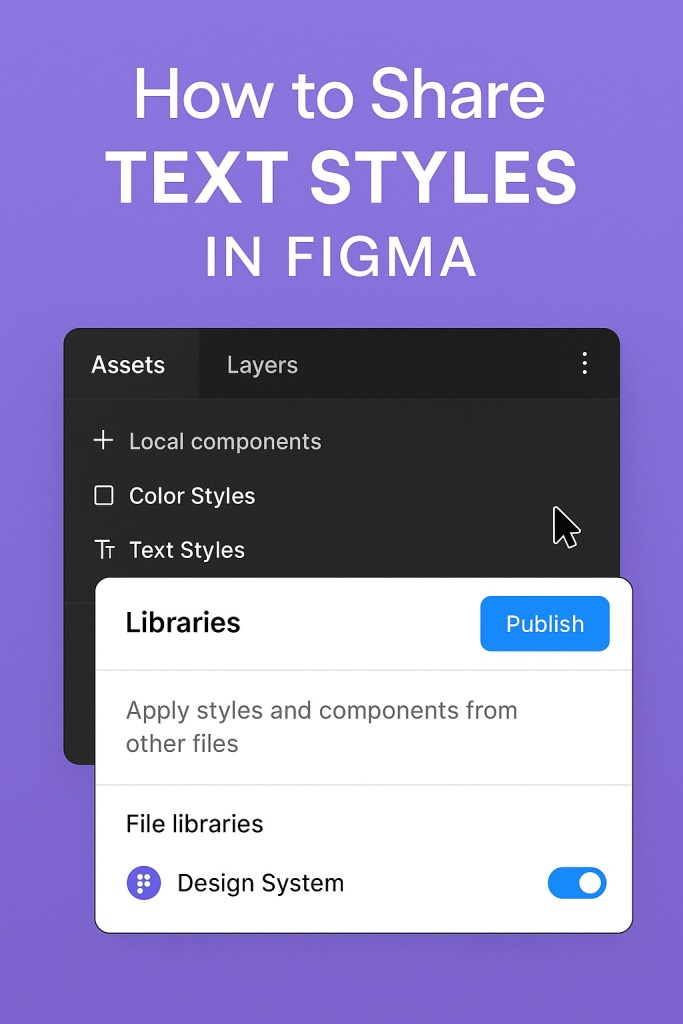
- Go to Assets Panel → Click on the book icon for Libraries.
- Click Publish (top-right corner).
- Choose which styles to include and hit Publish Styles.
In other files:
- Open the Assets Panel → Click on Libraries again.
- Enable the published library with your styles.
- Now you can access all shared text styles under the “Text” tab.
🧠 Tip: Use consistent naming conventions like Heading / H1, Body / Regular to keep the library tidy.
🧩 Method 2: Embed Text Styles in Components
Text styles are automatically embedded when used in components. If you share a component that includes a text layer with a style, that style comes along for the ride.
Why it’s useful:
- No need to re-define styles
- Makes component-based design systems more robust
- Great for design tokens and Dev Mode usage
📤 Method 3: Share Styles via Copy-Paste
This is a simple, manual method for one-off use.
✅ Steps:
- Select a text layer using a defined style.
Cmd/Ctrl + Cto copy.- Open the destination file and
Cmd/Ctrl + Vto paste.
✅ The style will show up in the new file’s style panel as imported, with a dot next to it.
🔌 Method 4: Export Text Styles as Tokens (For Dev Teams)
To hand off text styles to developers, export them as design tokens using plugins like:
- Tokens Studio
- Design Tokens
- Themer
These tools let you export styles in:
- JSON
- CSS variables
- SCSS / Tailwind formats
Great for bridging design → development.
📚 Organizing Shared Text Styles
Best practices for naming and structuring:
| Type | Name Format |
|---|---|
| Headings | Heading / H1, Heading / H2 |
| Body | Body / Small, Body / Large |
| UI | Label / Button, Label / Caption |
Group styles logically using slashes / for dropdown nesting in the style panel.
🔗 Summary
| Method | Best For | Syncs Automatically |
|---|---|---|
| Shared Library | Team collaboration, systems | ✅ Yes |
| Components with Styles | Design systems, templates | ✅ Yes |
| Copy-Paste Between Files | Quick, ad hoc use | ❌ No |
| Plugins for Code Export | Developer handoff | ✅ Yes |
🎯 Final Thoughts
Sharing text styles in Figma is more than convenience—it’s about creating scalable, professional design workflows. By setting up a shared style library and naming system, you save hours of work and make collaboration seamless.
Want more tips for systemized design? Explore tutorials on Designilo.com, where we simplify design ops and help you work smarter with Figma.

 Designilo