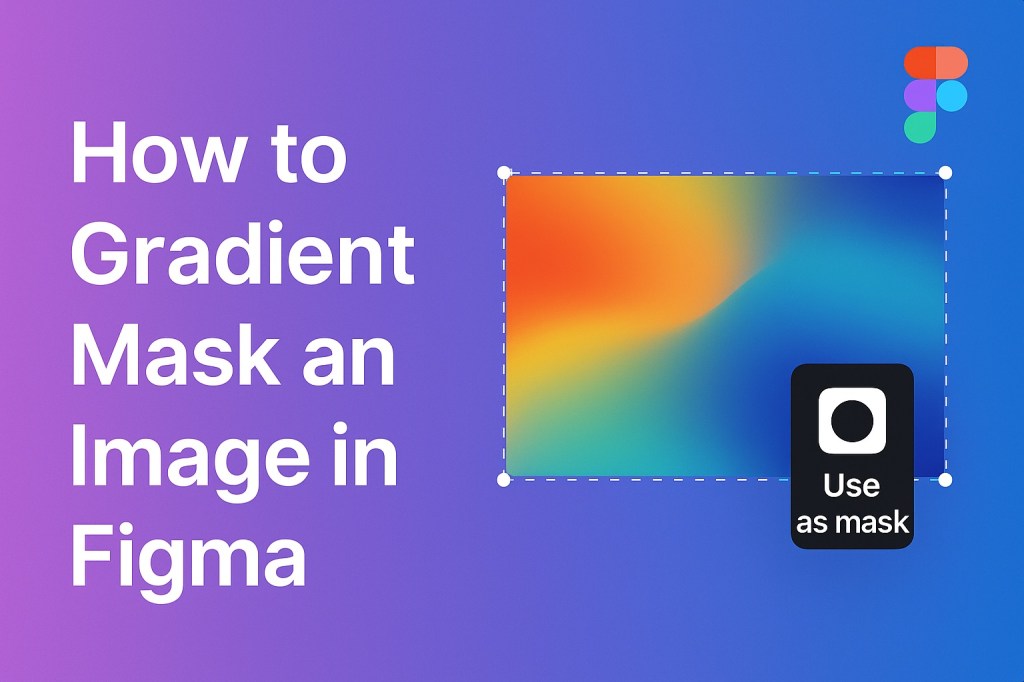
Gradient masks are a powerful design technique in Figma. They let you blend images into backgrounds, create soft fade-outs, or highlight specific areas without harsh edges. While Figma doesn’t have a native gradient mask tool, you can easily simulate this effect using masks and gradients.
Let’s walk through how to do it properly — no plugins required.
🎨 What Is a Gradient Mask?
A gradient mask allows parts of an image to gradually fade into transparency or into another background element. You might use this effect when:
- Softening the edge of a photo
- Creating a hero banner that blends into background color
- Highlighting a product while fading out the rest
- Enhancing depth or focus in your UI
✅ What You’ll Need
- A high-resolution image
- A rectangle shape with a linear gradient fill
- Figma’s masking feature
🛠 Step-by-Step: Gradient Masking an Image in Figma
1. Place the Image
- Drag or paste your image into the canvas.
- Resize it to fit your desired layout.
2. Create a Gradient Shape
- Draw a rectangle over the part of the image you want to fade.
- Go to the Fill panel and change the fill to Linear Gradient.
- Make the first stop solid white (100% opacity).
- Make the second stop solid black (0% opacity).
- Adjust gradient direction (top-to-bottom, side-to-side, diagonal).
This shape will act as your opacity mask.
3. Mask the Image
- Select both the gradient rectangle and the image.
- Right-click → Use as Mask.
Figma will now treat the white area of the gradient as fully visible and the black area as fully transparent.
🎯 Pro Tip: Invert the Gradient for Different Effects
If you want the image to fade in from the side rather than out, simply swap the black and white gradient stops. This lets you control how and where the fade occurs.
🧠 Bonus: Masking Into a Shape
Want your gradient-faded image to stay inside a shape (like a circle or text)?
- Group your gradient and image with
Cmd/Ctrl + G - Place them above your shape
- Select both the shape and group → Right-click → Use as Mask
Now the fade happens inside the shape’s bounds — great for logos, avatars, or decorative text.
🔥 Example Use Cases
| Use Case | How a Gradient Mask Helps |
|---|---|
| Hero sections | Fade a photo into solid background color |
| Product images | Draw focus on the main object, fade the rest |
| UI cards | Add soft fade transitions between visual areas |
| Social media templates | Overlay text on top of faded image sections |
⚠️ Common Mistakes to Avoid
| Mistake | Fix |
|---|---|
| Gradient not working | Ensure it’s set to Linear Gradient (not Solid) |
| Masked area is wrong | Recheck which layer is above the other |
| Fade looks harsh | Adjust the spacing between color stops |
| Image disappears entirely | Double-check layer order and opacity values |
✅ Summary: Smooth Fades in Figma with Gradient Masks
Creating gradient masks in Figma isn’t just a visual trick—it’s a way to enhance flow, highlight key areas, and boost professionalism in your UI.
You don’t need third-party tools. Just master Figma’s gradient fills and masking, and you’ll unlock a whole new level of creative freedom.
For more tips like this, browse layout tricks, component logic, and Dev Mode hacks at Designilo.com.

 Designilo