Artboards—known in Figma as frames—are essential containers that help structure your design projects. Whether you’re designing screens for a mobile app, website, or presentation, frames help you stay organized and work efficiently. In this article, we’ll walk you through how to create a new artboard (frame) in Figma, step by step.
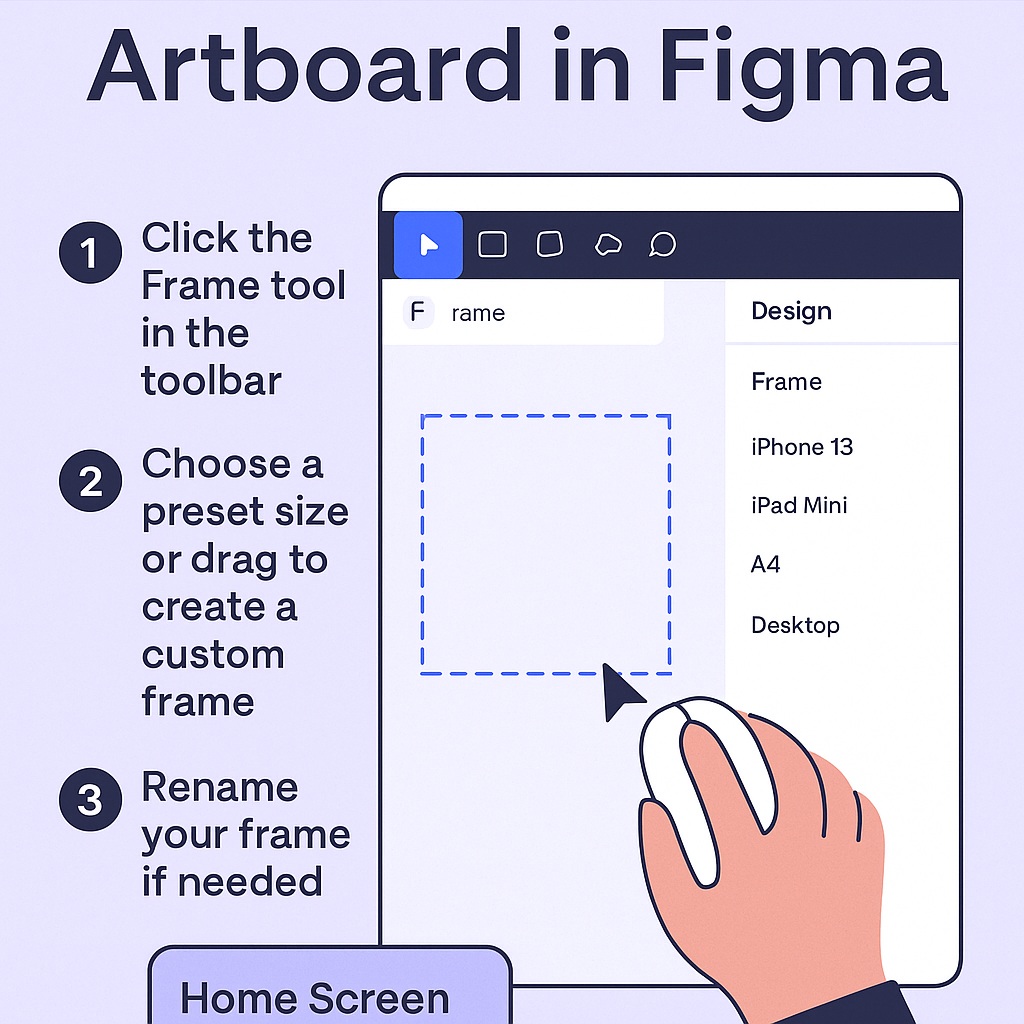
🎯 What Is an Artboard in Figma?
In Figma, an “artboard” is technically called a Frame. It’s a flexible space where you can place your design elements. You can use frames to:
- Design multiple screens side by side
- Set responsive constraints
- Export specific parts of a design
- Manage layouts for different devices
🛠 How to Create a New Artboard (Frame)
There are multiple ways to create a new frame in Figma. Here’s the easiest method:
✅ Method 1: Using the Frame Tool
- Open your Figma file or start a new one.
- Select the Frame Tool by pressing
Fon your keyboard, or clicking the frame icon in the toolbar (it looks like a hashtag or pound symbol#). - You’ll see options in the right-hand panel for common device sizes like iPhone 13, iPad, Desktop, etc.
- Click one of those presets, or click and drag on the canvas to draw a custom-sized frame.
✅ Method 2: Use the Menu
- Go to the top menu bar:
Insert→Frame. - Choose a preset from the right panel or manually draw the frame on your canvas.
📐 Pro Tip: Rename Your Frame
After you create a frame, rename it to something meaningful (e.g., Home Screen, Login Page). You can double-click the layer name in the left sidebar or use Cmd/Ctrl + R to rename it quickly.
🔁 Duplicating Existing Artboards
If you’re designing multiple screens with similar layouts, it’s smart to duplicate your frame:
- Select the frame and press
Cmd/Ctrl + D - Or use
Alt + Dragto duplicate while positioning it
This maintains consistency and speeds up your workflow.
📤 Exporting Artboards
Each frame (artboard) can be exported individually:
- Select the frame
- Click the Export section at the bottom of the right-hand panel
- Choose the format (PNG, JPG, SVG, PDF)
✅ Summary
Creating artboards—called Frames in Figma—is one of the first things you’ll do in a new design project. They’re simple to create, easy to manage, and form the backbone of your layout. Use the F key or toolbar icon to get started, and take advantage of presets for device-based design.

 Designilo