Clipping masks in Figma allow you to show only specific parts of an object or image, following the shape of another object — much like cropping, but far more flexible. Whether you’re designing a UI layout, product mockup, or illustration, clipping masks help you control visual boundaries with precision and creativity.
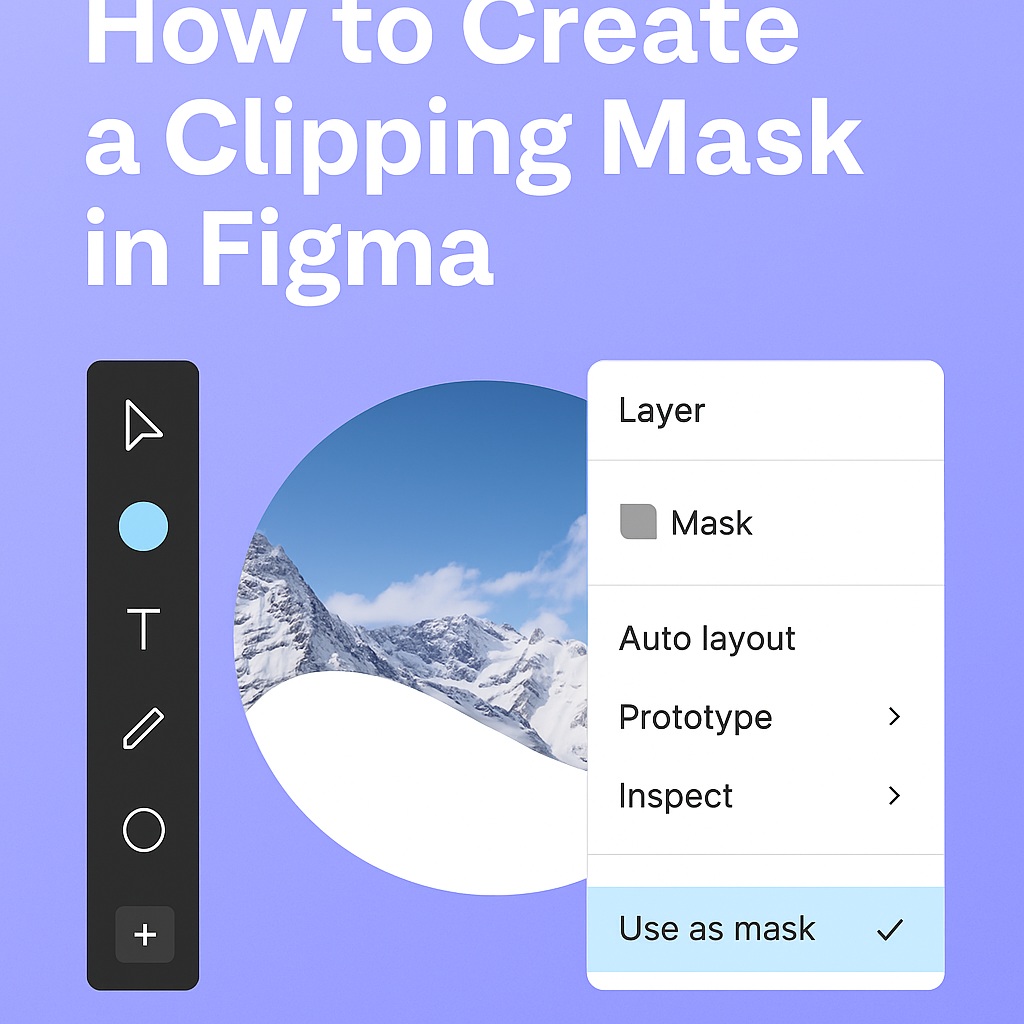
🧠 What Is a Clipping Mask in Figma?
A clipping mask in Figma is a shape that defines the visible area of any layers or elements grouped underneath it. Instead of deleting or trimming parts of your design, you simply “mask” them — the hidden portions are still there but invisible.
Think of it like placing a cut-out paper on top of an image: only what’s inside the shape is visible.
✂️ How to Create a Clipping Mask
Follow these steps to create a clipping mask in Figma:
Step 1: Place Your Image or Object
Start by dragging your image or design element onto the canvas.
Step 2: Draw the Shape That Will Act as the Mask
Use the shape tool (R for rectangle, O for circle, or the pen tool for custom shapes) to draw the area you want visible.
Tip: The mask shape must be on top of the layer you want to clip.
Step 3: Select Both the Shape and the Image
Hold Shift and click to select both the mask shape and the layer you’re clipping.
Step 4: Apply the Mask
Use the shortcut Ctrl + Alt + M (Windows) or Cmd + Option + M (Mac), or right-click and choose Use as Mask from the context menu.
Voilà! The content is now clipped to the shape of your mask.
🔧 Editing the Mask
- You can double-click into the mask group to adjust either the shape or the content inside.
- To remove a clipping mask, right-click and select Remove Mask or uncheck the mask in the right sidebar.
📌 Use Cases for Clipping Masks
- Showcasing only a part of a product screenshot
- Creating circular profile images
- Crafting complex overlays and textures
- Designing within confined UI elements (like buttons or cards)
🧪 Pro Tips
- You can apply clipping masks to multiple elements at once.
- Combine clipping masks with auto layout and component design for reusable templates.
- Use masks on interactive components for advanced UI effects.
Final Thoughts
Clipping masks are a core visual design technique in Figma, unlocking precise control over what’s visible in your designs. They’re quick to apply, easy to tweak, and powerful when combined with Figma’s broader feature set. Whether you’re a UI designer, illustrator, or product developer, mastering masks gives you a new level of creative flexibility.

 Designilo