Grids are the invisible backbone of clean, well-aligned designs. Whether you’re designing for web, mobile, or print, grids in Figma help maintain spacing consistency, structure your layouts, and improve overall readability. In this article, we’ll walk you through everything you need to know about creating and customizing grids in Figma.
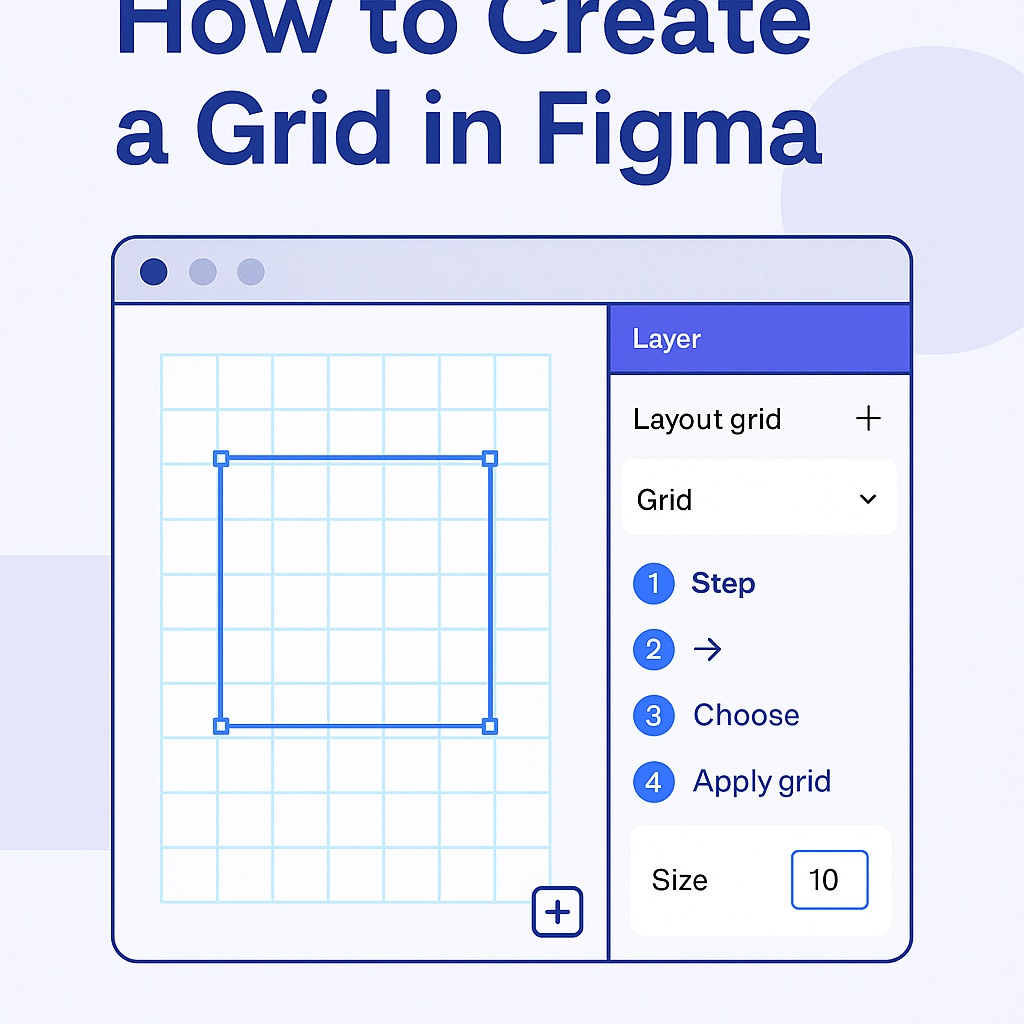
🔧 What Are Grids in Figma?
In Figma, grids are visual guides applied to frames (not to the canvas itself) to help align elements. There are three types of layout grids:
- Grid – A uniform square grid, often used in icon design or small components.
- Columns – Great for responsive layouts like websites or mobile apps.
- Rows – Useful for vertically-structured layouts or table-based designs.
🛠️ How to Add a Grid in Figma
- Select a Frame
You can’t apply a grid to an empty canvas. First, draw a frame (Fkey) or select an existing frame. - Open the Layout Grid Settings
In the right-hand sidebar, scroll down to the Layout Grid section and click the plus (+) icon. - Choose Your Grid Type
Click on the dropdown next to “Grid” to select from:- Grid
- Columns
- Rows
- Customize the Grid
- Grid: Adjust the size of the squares.
- Columns/Rows: Set the count, gutter (spacing between columns/rows), margin, and alignment (left, center, stretch).
- Add Multiple Grids
You can apply more than one type of grid to a frame — for example, a column grid plus a square grid overlay. - Toggle Visibility
HitCtrl + G(Windows) orCmd + G(Mac) to toggle grid visibility on/off while working.
🎨 Pro Tips for Designers
- Use Grid Styles: Create reusable grid styles for consistent use across files and projects.
- Pair Grids with Auto Layout: For ultra-consistent spacing and responsiveness.
- Don’t Over-grid: Keep things simple; too many gridlines can overwhelm your design.
🧠 Final Thoughts
Grids may be invisible in the final product, but their impact is massive. By using Figma’s flexible grid system, you bring logic and order to your layouts — making your designs both aesthetically pleasing and functionally sound.
✅ Next step? Apply a grid to your next design frame and watch your layouts snap into harmony.

 Designilo