Organizing your design files in Figma is critical for clarity, collaboration, and speed—especially as your projects grow. One of the most effective ways to structure your canvas is by using Sections. These rectangular containers act like visual folders within your design, making it easier to group related frames, components, or UI flows.
In this article, we’ll walk through how to create a new section in Figma, what they’re useful for, and how to make the most of them.
✅ What Is a Section in Figma?
A Section is a special layout tool in Figma that helps organize your canvas. Think of it as a container you can label and resize, like a grouping frame for organizing multiple elements. Sections are particularly helpful when you’re designing flows, organizing screens, or prepping handoffs for developers.
🛠️ How to Create a New Section in Figma
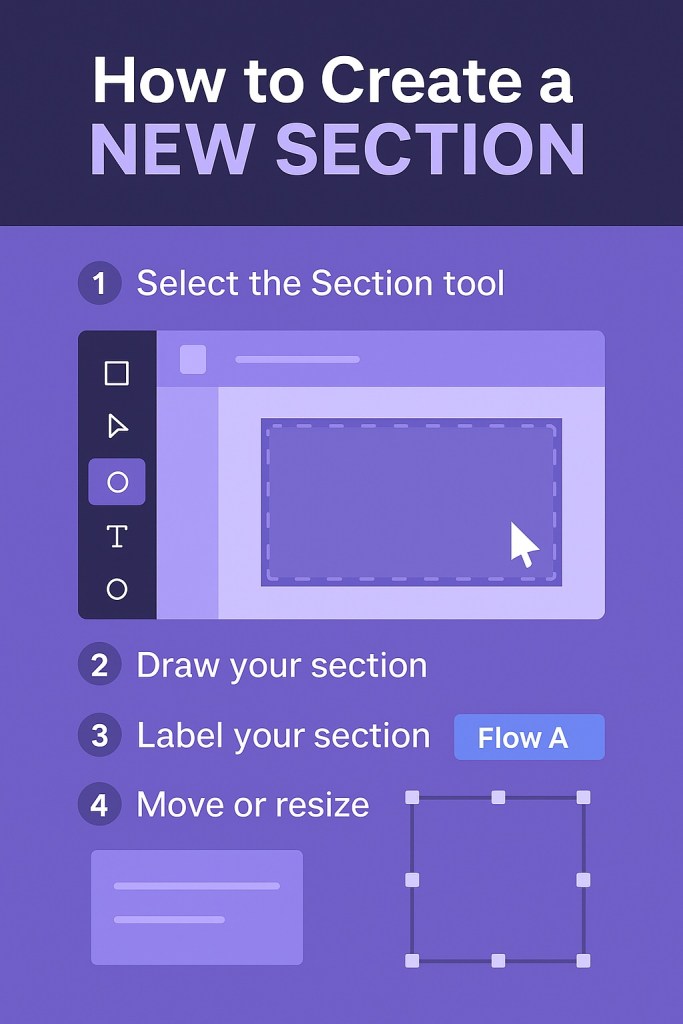
Creating a section is simple:
- Select the Section Tool:
- Press
Shift + Sor - Click the Section tool from the top toolbar (next to the Frame tool).
- Press
- Draw Your Section:
- Click and drag on the canvas to create a rectangular area.
- You can draw around existing frames or empty space to start fresh.
- Label Your Section:
- Double-click the section name to rename it.
- Give it a clear label like “Login Flow” or “Onboarding Screens.”
- Move or Resize:
- Click the edge of the section to move or resize it.
- Sections can be nested or overlapped with frames and other sections.
🔎 Section Tips for Better Organization
- Color-Coding: Use background fills on sections to visually separate design areas.
- Labels as Documentation: Add descriptions to your section titles, especially for dev handoff.
- Sections vs. Frames: Unlike frames, sections are not layout containers—they’re organizational aids.
🧠 When to Use Sections
- Organizing multi-screen flows
- Separating workspaces within a project
- Creating design checklists or approval zones
- Annotating file structure for devs
Final Thoughts
Sections are a low-effort, high-reward way to bring clarity to your design files. Whether you’re working solo or with a full team, learning to use them well can dramatically improve how your project is navigated and understood.

 Designilo