Welcome to the Designilo FAQ hub—your one-stop resource for understanding Figma, solving common problems, and mastering professional design workflows. Whether you’re just getting started or scaling a design system across teams, these frequently asked questions (and their answers) will point you in the right direction.
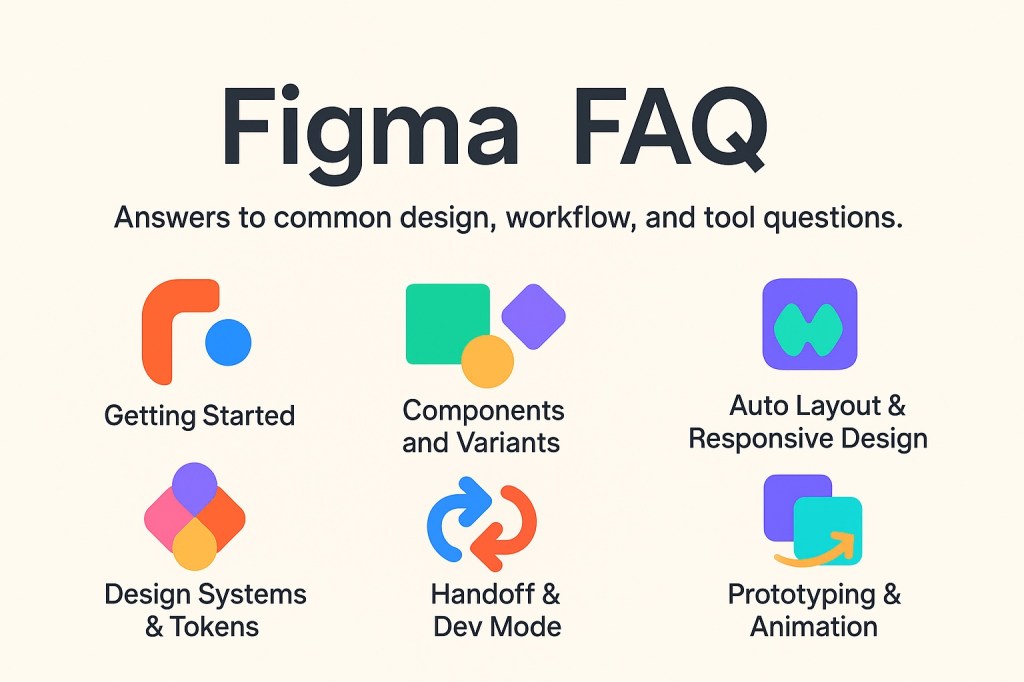
🔰 Getting Started with Figma
🟢 Begin your journey with the fundamentals of Figma.
What is Figma and how does it work?
Figma is a cloud-based interface design tool that allows designers to collaborate in real time. It works directly in your browser or as a desktop app and supports everything from wireframing and prototyping to developer handoff.
Is Figma free to use?
Yes. Figma offers a free plan with generous features including unlimited files, up to 3 Figma editors, and unlimited FigJam files. Paid plans unlock advanced collaboration and design system tools.
Can I use Figma offline?
Figma’s desktop app offers limited offline functionality—you can view and edit files you’ve previously opened, but real-time collaboration and cloud syncing require an internet connection.
What’s the difference between Figma and FigJam?
Figma is a powerful design tool primarily used for creating user interfaces, prototypes, and design systems. FigJam, on the other hand, is a collaborative whiteboarding tool made for brainstorming, planning, and mapping ideas with teams in real time. While Figma focuses on precise UI design, FigJam emphasizes freeform ideation and team collaboration.
→ Read the full Figma FigJam Difference tutorial
What is the difference between frame and group in figma?
In Figma, a Frame is a container that can hold other elements and defines layout properties like constraints, auto layout, and scrolling behavior—it’s often used for artboards, screens, or components. A Group simply clusters multiple layers together for easier movement and organization but lacks the advanced layout features of frames. Use Frames when you need design logic and responsiveness, and Groups for basic layer management.
→ Read the full Frame and Group Difference tutorial
What is the latest version of Figma?
As of now, Figma continuously updates its platform with incremental feature releases rather than using traditional version numbers. You can check the latest updates by visiting Figma’s Release Notes or through the “What’s New” panel within the Figma interface. Major changes often include improvements to Dev Mode, Variables, and Auto Layout features.
→ Read the full Figma Latest tutorial
How to blur something in Figma?
To blur something in Figma, select the object or layer you want to blur, then go to the right-hand sidebar and click the “+” icon under the Effects section. Choose Background Blur to blur content behind the object, or Layer Blur to blur the object itself. You can adjust the blur intensity using the numeric input next to the effect.
→ Read the full Blur tutorial
How to curve text in Figma?
Figma doesn’t support curved or circular text natively, but you can achieve the effect using plugins like “Arc” or “Curved Text” from the Figma Community. After installing a plugin, select your text, run the plugin, and adjust the radius and arc settings to shape the text along a curve. For more control, you can convert the text to outlines and manually arrange the letters along a path.
→ Read the full Curved Text tutorial
How to mask in Figma?
To mask in Figma, place the object you want to use as a mask (like a shape) directly above the content you want to mask (like an image or text). Select both layers, then right-click and choose “Use as Mask” or press Ctrl/Cmd + Shift + M. The top layer will act as the mask, showing only the parts of the content that fit within its shape.
→ Read the full Mask tutorial
Why are masks Not working in Figma?
Masks in Figma may not work correctly if the masking shape isn’t placed above the content layer in the layer hierarchy. Ensure that the mask is the topmost layer within the selected group, and that both the mask and content are selected before applying “Use as Mask.” Also, check for issues like missing fills, hidden layers, or components with restricted visibility that can interfere with the mask effect.
→ Read the full NOT Mask tutorial
How to export Figma to PDF?
To export a Figma frame or design as a PDF, select the frame, then go to the right-hand panel, click the Export section, and choose PDF as the file format. Click the Export button, and Figma will generate a downloadable PDF file of your selected frame. You can also select multiple frames to export them as a multi-page PDF.
→ Read the full Figma to PDF tutorial
How to superscript in Figma?
Figma doesn’t have a built-in superscript feature, but you can manually create the effect by reducing the font size and shifting the baseline upward. To do this, create a separate text layer for the superscript, set a smaller font size, and move it slightly higher using the Y-position in the properties panel. Alternatively, you can use Unicode superscript characters if you’re only working with numbers or simple symbols.
→ Read the full Superscript tutorial
How to underline text in Figma?
To underline text in Figma, select the text layer and click the Underline button in the text toolbar, or use the shortcut Ctrl + U (Windows) or Cmd + U (Mac). This applies an underline style to the entire selected text or to specific highlighted portions. You can also customize the text appearance using font, weight, and color settings in the right-hand panel.
→ Read the full Underline tutorial
How to stretch text in Figma?
To stretch text in Figma, select the text layer and change the text box resizing mode from “Auto Width” to “Fixed Size” in the right-hand panel. Then drag the text box handles horizontally to stretch or compress the text container. Note that this affects the bounding box, not the individual letter proportions—Figma doesn’t support manual horizontal scaling of glyphs like in some desktop design tools.
→ Read the full Stretch Text tutorial
How to stretch image Figma?
To stretch an image in Figma, first select the image layer on the canvas. Then, drag any of the corner or side handles to resize it—holding Shift will maintain proportions, while dragging freely will stretch the image. For precise control, you can also enter custom width and height values in the right-hand properties panel.
→ Read the full Stretch Image tutorial
How to combine layers in Figma?
To combine layers in Figma, select the layers you want to merge by holding Shift and clicking each one. Then right-click and choose “Group Selection” to group them, or use Boolean operations (like Union, Subtract, Intersect) under the top toolbar for shape combinations. Grouping keeps layers editable, while Boolean operations create a new vector shape from them.
→ Read the full Combine Layers tutorial
How to unlock all layers in Figma?
To unlock all layers in Figma, open the Layers panel on the left side of the interface. Right-click on any locked layer or use Ctrl/Cmd + A to select all, then right-click and choose “Unlock Layers.” You can also use the top menu: go to Edit > Unlock All to quickly unlock every layer in the file.
→ Read the full Unlock Layers tutorial
How to skew in Figma?
Figma doesn’t have a native skew or shear tool like some vector editors. However, you can simulate a skew effect by converting shapes to outlines (using “Outline Stroke” or “Flatten”) and then manually adjusting anchor points with the vector editing tool. For text, convert it to outlines first before manipulating it.
→ Read the full Skew tutorial
How to add grain effect in Figma?
To add a grain effect in Figma, you can use a plugin like Grainy Gradients or Noise & Texture to overlay grain textures onto your design. After installing the plugin, run it, customize the grain intensity and contrast, then apply it as a layer or background. You can also import a transparent PNG grain texture and adjust its opacity and blending mode for a manual effect.
→ Read the full Grain Effect tutorial
How to change line spacing in Figma?
To change line spacing in Figma, first select your text layer. Then, go to the right-hand panel and find the Line height setting under the Text section. You can adjust the value manually or click the dropdown to choose between “Auto” and a fixed pixel value for custom spacing.
→ Read the full Line Spacing tutorial
How to create a dotted line in Figma?
To create a dotted line in Figma, first draw a line using the Line tool (L) or Pen tool (P). With the line selected, go to the right-hand properties panel, click on Stroke, and check the “Dashed Line” option—then input values like 0 4 to create dots instead of dashes. You can adjust the stroke weight and spacing to fine-tune the appearance of your dotted line.
→ Read the full Dotted Line tutorial
How to export Figma frame as png?
To export a Figma frame as a PNG, select the frame you want to export. In the right-hand panel, scroll down to the Export section, click +, and choose PNG from the format dropdown. Then click the Export [Frame Name] button to save the PNG to your computer.
→ Read the full Figma frame PNG tutorial
How to create nested components in Figma?
To create nested components in Figma, start by creating individual components and then place one inside another. When you drag a component into another and select both, you can create a new parent component that contains them. This technique helps build scalable design systems with reusable, modular elements.
→ Read the full Nested Components tutorial
How to highlight text on Figma?
To highlight text in Figma, select the text layer and apply a background color behind the text using a rectangle or shape. You can either manually draw a rectangle and position it under the text or use auto layout with background fill to simulate highlighting. Adjust the opacity and color to match the desired highlight effect.
→ Read the full Highlight Text tutorial
How to make a gradient in Figma?
To make a gradient in Figma, select the shape or layer you want to apply the gradient to, then open the Fill panel in the right-hand sidebar. Click the color swatch and choose “Linear,” “Radial,” “Angular,” or “Diamond” from the gradient options. Adjust the color stops and direction directly on the canvas to fine-tune your gradient.
→ Read the full Make Gradient tutorial
How to reorder frames in Figma?
To reorder frames in Figma, go to the Layers panel on the left-hand side and click and drag the frame you want to move. You can reposition it above or below other frames in the hierarchy. This affects the stacking order on the canvas and how frames are grouped or presented.
→ Read the full Reorder Frames tutorial
How to make accordion in Figma?
To make an accordion in Figma, use auto layout to stack sections vertically and create components for each expandable item. Use variants or interactive components to toggle between expanded and collapsed states. Then prototype the interaction using click triggers to simulate the accordion behavior.
→ Read the full Make Accordion tutorial
How to add glow effect in Figma?
To add a glow effect in Figma, select the object and go to the Effects section in the right-hand panel. Click the “+” icon and choose Drop Shadow, then adjust the blur, spread, and color opacity to create a glowing appearance. You can intensify the glow by duplicating the shadow effect or using a bright color with reduced
→ Read the full Glow Effect tutorial
How to make a drop down menu in Figma?
To make a dropdown menu in Figma, start by designing the default state (e.g. a button or label) and the expanded state with menu options. Use Variants and Prototype interactions (like “On Click → Change to”) to toggle between these states. Wrap both states in a component set for easy reuse and interactive previews.
→ Read the full Dropdown Menu tutorial
Can you add Adobe fonts to Figma?
Yes, you can use Adobe Fonts in Figma by installing them on your local system through Adobe Creative Cloud. Once installed, Figma can access these fonts via the Figma Font Helper, which allows the desktop app to recognize local fonts. Keep in mind that collaborators will also need the same fonts installed locally to view or edit designs correctly.
→ Read the full Adobe Fonts tutorial
How to extend page Figma?
To extend a page in Figma, simply click and drag the edge or corner of the canvas to expand the workspace. You can also zoom out and place new frames or content further in any direction—Figma’s canvas is virtually infinite. This flexibility allows you to grow your designs horizontally or vertically without any page size limitations.
→ Read the full Extend Page tutorial
How to change dpi in Figma?
Figma itself doesn’t allow you to set or change DPI directly because it works in pixels for screen-based design. However, when exporting assets, you can simulate higher DPI by choosing export options like 2x, 3x, or entering a custom resolution. For print projects, export your designs as PDFs or high-resolution PNGs and set the DPI in external tools like Photoshop or a PDF editor.
→ Read the full Change DPI tutorial
How to delete a layer in Figma?
To delete a layer in Figma, simply select the layer on the canvas or in the Layers panel. Then press the Delete or Backspace key on your keyboard. You can also right-click the layer and choose “Delete” from the context menu.
→ Read the full Delete Layer tutorial
How to delete a point in Figma?
To delete a point in Figma, first select the vector shape using the Move or Direct Selection tool. Then enter vector edit mode by double-clicking the shape or pressing Enter, and click on the point you want to delete. Press Delete or Backspace to remove the point and adjust the path accordingly.
→ Read the full Delete Point tutorial
How to delete a rectangle in Figma?
To delete a rectangle in Figma, first click on the rectangle to select it on the canvas or in the Layers panel. Then press the Delete or Backspace key on your keyboard. You can also right-click the rectangle and choose “Delete” from the context menu.
→ Read the full Delete Rectangle tutorial
How to group in Figma?
To group elements in Figma, select multiple objects by holding Shift and clicking them, then press Ctrl + G (Windows) or Cmd + G (Mac). Grouping allows you to move, resize, and manage elements as a single unit. To ungroup, select the group and press Shift + Ctrl/Cmd + G.
→ Read the full Group tutorial
How to hide comments in Figma?
To hide comments in Figma, click the comment icon (speech bubble) at the top-right of the toolbar to toggle comment visibility. When the icon is deselected, all comment pins and threads are hidden from the canvas view. This is useful when you want a distraction-free design environment without deleting the comments.
→ Read the full Hide Comments tutorial
How to enlarge text on Figma?
To enlarge text in Figma, select the text layer and go to the right-hand panel under the Text section. You can increase the font size by typing a new value in the font size input box or using the up/down arrow keys. Holding Shift while pressing the arrow key adjusts the size in larger increments.
→ Read the full Enlarge Text tutorial
How to add symbols in Figma?
To add symbols in Figma, you can use Unicode characters or emoji directly in text layers by copying and pasting them or using your operating system’s character viewer. For more advanced symbols or icons, you can import SVG files or use an icon library like Feather or Material Icons as components. These icons can then be resized, styled, or nested within components for consistent reuse across your design.
→ Read the full Add Symbol tutorial
How to convert png to svg in Figma?
To convert a PNG to SVG in Figma, you’ll first need to manually trace the image. Import the PNG into your canvas, then use the Pen Tool or Image Trace plugin to recreate the shapes as vector paths. Once traced, you can export the selection as an SVG via File > Export > SVG.
→ Read the full Figma PNG to SVG tutorial
How to make a button in Figma?
To make a button in Figma, start by drawing a rectangle for the background and adding a text layer for the label. Use Auto Layout to wrap the text inside the shape with consistent padding and alignment. You can then turn it into a component to reuse it across your design and create different states like hover or disabled using variants.
→ Read the full Button tutorial
How to add variants in Figma?
To add variants in Figma, select a component and click the “+” button next to the Variants section in the right-hand panel. This creates a set where you can define different states like default, hover, or disabled. You can then assign properties (like “State” or “Size”) to control which variant appears in each instance.
→ Read the full Variants tutorial
Does figma autosave?
Yes, Figma autosaves your work automatically and continuously in the cloud. Every change is saved in real time, so there’s no need for manual saving. You can also access version history to review or restore earlier iterations.
→ Read the full Autosave tutorial
Can Figma export to PPT?
Yes, Figma can export designs to PowerPoint (PPT) format, but not directly. You’ll need to first export your frames or components as images (PNG or JPG) or PDFs and then insert them into your PowerPoint slides manually. For presentations, Figma’s built-in “Presentation View” can also serve as a lightweight alternative.
→ Read the full Figma to PPT tutorial
How to export Figma to Canva?
To export from Figma to Canva, first select your frame or design and export it as a PNG, JPG, or SVG file using the export panel. Then, open Canva and upload the exported file via the “Uploads” tab. Once uploaded, you can drag and drop it into any Canva design.
→ Read the full Figma to Canva tutorial
Are Figma Plugins Free?
Yes, many Figma plugins are free and available directly from the Figma Community. Some plugins offer premium features or paid versions for advanced functionality. You can browse, install, and manage plugins easily within Figma’s “Resources” panel.
→ Read the full Figma Plugins Free tutorial
Are Figma Plugins Safe?
Figma plugins are generally safe to use, especially those listed in Figma’s official Community plugin library, as they undergo a review process. However, since plugins can access and manipulate your design content, it’s important to only install plugins from trusted developers and review the permissions they request. Always keep Figma and your plugins updated to ensure you’re using the latest secure versions.
→ Read the full Figma Plugins Safe tutorial
How to undo on Figma?
To undo an action in Figma, simply press Ctrl + Z (Windows) or Cmd + Z (Mac). This reverts your last change, whether it’s a shape move, text edit, or property adjustment. You can undo multiple steps in sequence, and also redo actions with Ctrl + Shift + Z or Cmd + Shift + Z.
→ Read the full Undo tutorial
How to create a table in Figma?
To create a table in Figma, use the Frame Tool to draw a grid-like structure, then add rectangles or lines to define rows and columns. You can use Auto Layout to align and space cells evenly and insert text layers into each cell for content. For complex tables, consider creating reusable components for rows or columns to maintain consistency.
→ Read the full Create Table tutorial
Can i merge tables in Figma?
Figma doesn’t offer a native “merge cells” feature like traditional spreadsheet tools, but you can visually merge table cells by combining or resizing frames. To simulate merged cells, delete divider lines and span one text or shape element across multiple columns or rows. This approach allows for flexible table design while maintaining a clean visual structure.
→ Read the full Merge Table tutorial
Can i merge blocks in Figma?
Yes, you can merge blocks in Figma by grouping or combining them into a single frame or component. Use the Group (Ctrl/Cmd + G) or Frame (Ctrl/Cmd + Alt + G) command to manage multiple blocks as one unit. For reusable merged elements, create a Component to maintain consistency across your designs.
→ Read the full Merge Blocks tutorial
How to hide frame name in Figma?
To hide a frame name in Figma, simply click on the frame, then uncheck the “Show name” option in the properties panel under the Layer section. This removes the label from the canvas but keeps the name visible in the Layers panel. It’s a useful way to declutter your workspace during presentations or focused design work.
→ Read the full Hide Frame Name tutorial
How to hide section name in Figma?
To hide a section name in Figma, select the section on the canvas and uncheck the “Show name” option in the right-hand sidebar under the Layer section. This removes the name label from the canvas but keeps it intact in the Layers panel. It’s a helpful way to keep your workspace clean during presentations or when designing complex layouts.
→ Read the full Hide Section Name tutorial
How to insert lorem ipsum in Figma?
To insert Lorem Ipsum text in Figma, use the built-in Text tool (T key), draw a text box, and then type or paste dummy text manually. For quicker results, install a plugin like “Lorem Ipsum” or “Content Reel” from the Figma Community. These plugins let you auto-generate placeholder text with one click directly inside your text layers.
→ Read the full Insert Lorem Ipsum tutorial
How to make a border in Figma?
To make a border in Figma, select the shape or frame you want to outline and go to the right-hand Stroke panel. Click the “+” icon to add a stroke, then adjust the color, weight, and alignment (inside, center, or outside) as needed. You can also apply dashed lines or multiple strokes for custom border styles.
→ Read the full Make Border tutorial
How to justify text in Figma?
To justify text in Figma, select your text box and go to the Text Alignment options in the right-hand properties panel. While Figma offers left, center, and right alignment, it does not currently support full text justification like in traditional word processors. As a workaround, you can manually adjust line breaks or use plugins to simulate justified alignment.
→ Read the full Justify Text tutorial
What unit does Figma use?
Figma uses pixels (px) as its default unit for all design measurements, including dimensions, spacing, and typography. Since Figma is a screen-based design tool, pixels align with how interfaces are rendered on digital devices. You won’t see inches or centimeters—everything is optimized for responsive, pixel-perfect design.
→ Read the full Units tutorial
How to share Figma file?
To share a Figma file, click the “Share” button in the top-right corner of the file. You can enter email addresses to invite specific people or generate a link to share with broader access settings like “view,” “edit,” or “can comment.” Make sure to adjust permissions before sending the link to control who can interact with your design.
→ Read the full Share Figma File tutorial
How to add a font to figma?
To add a custom font to Figma, you need to install the Figma Font Helper on your computer. Once installed, any fonts installed on your system will become available in the Figma desktop app and browser. Note that only you (not collaborators) can see and use local fonts unless they also have them installed.
→ Read the full Add Font tutorial
How to add padding in Figma?
To add padding in Figma, select a frame or use Auto Layout on a group of elements by pressing Shift + A. In the right-hand panel, you’ll see padding controls where you can set values for top, bottom, left, and right. This ensures consistent spacing inside your frame, especially useful for buttons, cards, and other container components.
→ Read the full Add Padding tutorial
How to add guides in Figma?
To add guides in Figma, simply click and drag from the top or left ruler onto the canvas. If you don’t see the rulers, enable them by pressing Shift + R or selecting View > Rulers from the menu. You can reposition or remove guides at any time to help align elements precisely in your design.
→ Read the full Add Guides tutorial
How to add a link to a button in Figma?
To add a link to a button in Figma, select the button or frame, then switch to Prototype mode. Click and drag the blue node (circle) to the destination frame or URL, then choose “Open Link” in the interaction panel. Enter the desired URL, and when users click the button in presentation mode, it will open that link in a browser.
→ Read the full Button Link tutorial
How to bend a line in Figma?
To bend a line in Figma, first select the line and click “Enter” or choose “Edit Object” to access vector points. Then, click on the line segment and drag to create a curve, or use the Bézier handles for precise control. You can also add new points with the Pen tool (P) to shape the line exactly how you want.
→ Read the full Bend Line tutorial
How to blend colors in Figma?
To blend colors in Figma, you can use the Layer Blend Modes found in the right-hand panel under the “Layer” section. These modes—like Multiply, Screen, or Overlay—let layers interact visually to create blended effects. For smooth color transitions, you can also apply gradients (linear, radial, angular, or diamond) to fills.
→ Read the full Blend Colors tutorial
How to change letter spacing in Figma?
To change letter spacing in Figma, select the text layer and look for the “Letter spacing” input in the right-hand panel under the Text section. You can increase or decrease the spacing by entering a value in pixels or using the up/down arrows. This allows you to adjust the visual rhythm of your text for better readability or stylistic effect.
→ Read the full Letter Spacing tutorial
How to change line height in Figma?
To change line height in Figma, select the text layer and look for the “Line height” setting in the right-hand Text panel. You can enter a custom pixel value or choose “Auto” to let Figma determine the spacing based on font size. Adjusting line height helps control text readability and visual spacing in both short and long content blocks.
→ Read the full Line Height tutorial
How to change opacity in Figma?
To change opacity in Figma, select the object, text, or layer you want to adjust. Then, go to the right-hand panel and locate the Opacity field near the top, where you can enter a value or use the slider. Lower values make the element more transparent, while 100% keeps it fully visible.
→ Read the full Opacity tutorial
How to cancel Figma subscription?
To cancel your Figma subscription, go to your account settings at figma.com/account and navigate to the Billing tab. From there, select the team or organization whose plan you want to cancel and click Cancel Plan. Your plan will remain active until the end of the billing cycle, and you won’t be charged again.
→ Read the full Cancel Subscription tutorial
Can ChatGPT generate Figma designs?
Yes, ChatGPT can assist in generating Figma designs by outputting Figma-compatible code using plugins like Figma to Code or by guiding you through component structure, layout, and logic. While it can’t directly create visuals inside Figma, it can provide design specs, component naming systems, or even copy-pasteable UI code (like in Figma Tokens or HTML/CSS). For more advanced automation, combining ChatGPT with the Figma API allows AI-assisted design workflows.
→ Read the full ChatGPT Figma tutorial
Can figma be used for print design?
Yes, Figma can be used for print design, although it is primarily optimized for digital UI/UX workflows. Designers can set custom canvas sizes in inches or millimeters, work in high resolution, and export assets in print-friendly formats like PDF. However, for complex print projects requiring CMYK color profiles or advanced prepress settings, traditional tools like Adobe InDesign or Illustrator may be more suitable.
→ Read the full Figma For Print Design tutorial
Can Figma be used on iPad?
Yes, Figma can be used on an iPad, but only through a web browser like Safari or Chrome — there is no dedicated Figma design app for iPad. While you can view, comment, and make minor edits, full-feature design capabilities are limited compared to the desktop version. For the best experience, Figma recommends using a desktop or laptop for design work.
→ Read the full Figma on iPad tutorial
Can Figma convert to HTML?
Figma does not directly convert designs to HTML, but you can use third-party plugins or tools like Figma to HTML, Anima, or Locofy to generate code from your designs. These tools export components and layouts into HTML, CSS, and sometimes React code, helping bridge the gap between design and development. While the generated code may require cleanup, it’s a helpful starting point for developers.
→ Read the full Figma convert HTML tutorial
Can Figma create website?
Figma itself doesn’t create live websites, but it’s a powerful tool for designing website layouts, UI components, and interactive prototypes. You can use Figma to visualize and structure a full website design, then share it with developers for implementation. With plugins or code export tools, parts of the design can be translated into HTML/CSS to kickstart development.
→ Read the full Figma create Website tutorial
Can Figma export HTML?
Figma does not natively export HTML code, but you can inspect elements and manually recreate styles using the code panel in Dev Mode. For direct HTML exports, you’ll need to use third-party plugins or tools like HTML Generator, Figma to HTML, or integrate Figma with tools like Anima. These solutions can speed up prototyping, but the generated code may still require cleanup for production use.
→ Read the full Figma export HTML tutorial
🧩 Components and Variants
🧱 Build reusable elements and scale your designs with ease.
What are Figma components?
Components are reusable UI elements you can create once and use across multiple frames and files. They help maintain consistency and speed up your workflow.
How do I create and manage variants?
Variants let you group related component states (like button hover, disabled, etc.) into a single, organized parent. Use the “Combine as Variants” option to manage them efficiently.
→ Read the full Variants tutorial
What’s the difference between a component and an instance?
A component is the master element; an instance is a copy of that component. You can override instances without breaking their link to the original.
How do I fix broken components?
Use the “Restore Master Component” option or re-link the component manually by selecting a new main source.
What’s the best way to name components and styles in Figma?
Use a structured naming system like Component/Type/State. Full naming tips here →
🧱 Auto Layout & Responsive Design
📐 Make your designs dynamic, adaptive, and efficient.
What is Auto Layout in Figma?
Auto Layout allows you to create dynamic layouts that respond to content changes. It’s perfect for buttons, lists, and responsive frames.
→ Read the full Auto Layout What tutorial
How to use auto layout Figma?
To use Auto Layout in Figma, select a frame or group of layers and click the “+” icon next to Auto Layout in the right-hand panel. This enables automatic spacing, padding, and alignment of elements inside the frame. You can adjust direction (horizontal or vertical), spacing between items, and padding to create responsive, consistent UI layouts.
→ Read the full Use Auto Layout tutorial
How do I make responsive designs in Figma?
Combine Auto Layout with constraints and min/max sizing to build responsive components that adapt to different screen sizes.
How does Auto Layout 5.0 differ from older versions?
Auto Layout 5.0 introduces gap tokens, wrapping, and alignment improvements that make responsive design even easier and more precise.
Why is my Auto Layout breaking?
Common reasons include nested frames with conflicting directions, fixed sizing where flexible is needed, or missing gap/alignment settings.
🎨 Design Systems & Tokens
🎛️ Create consistency with structured, scalable UI foundations.
What is a design system in Figma?
A design system is a collection of reusable components, styles, tokens, and guidelines that ensure consistency across products. Figma helps you manage these through libraries and shared files.
→ Read the full Design System tutorial
What are design tokens and how do I use them?
Design tokens are named variables for colors, typography, spacing, etc. Figma supports tokens through plugins or variables to ensure scalable theming.
→ Read the full Design Tokens tutorial
what are variables in Figma?
Variables in Figma are reusable values—such as colors, text strings, numbers, or boolean values—that you can define once and apply across your design. They help ensure consistency and make it easier to update your design system by changing a variable’s value instead of editing multiple instances. Variables can be used in design and prototyping, enabling more dynamic and scalable workflows.
→ Read the full Figma Variables tutorial
How do I structure a scalable component library?
Use nested components, clearly named variants, and shared styles. Organize your file by categories like Inputs, Buttons, Modals, etc., and keep documentation close.
What’s the best way to name components and styles?
Use a structured naming system: Component/Type/State (e.g., Button/Primary/Disabled). Keep style names short, readable, and grouped by type.
→ Read the full Name Component and Styles tutorial
👨💻 Handoff & Dev Mode
📤 Smooth the transition from design to development.
What is Figma Dev Mode?
Dev Mode is a developer-friendly view in Figma that simplifies inspection, access to specs, and copyable code. It removes design noise and focuses on implementation details.
→ Read the full Figma Dev Mode tutorial
How do I share specs with developers?
Use Dev Mode, comment annotations, and shared libraries. You can also use plugins or third-party tools to enhance handoff quality.
What is the best way to document components?
Use inline documentation with descriptions, labels, and usage notes. Consider maintaining a separate “Docs” page or publishing through tools like Zeroheight.
→ Read the full Document Components tutorial
How do I inspect spacing, colors, and styles?
In Dev Mode, developers can click any element to view paddings, distances, colors, and font styles. You can also define tokens to make this easier.
🎬 Prototyping & Animation
🎞️ Bring your designs to life with interaction and motion.
How do I prototype in Figma?
Use links between frames and interactive components. Add transitions like slide, dissolve, or Smart Animate to simulate navigation.
What is Smart Animate and how do I use it?
Smart Animate lets Figma detect and animate differences between frames. Works best with named layers and shared components.
Can I simulate scrolling in Figma?
Yes. Use overflow behavior, fixed elements, and scroll areas in your frames to simulate scrolling interactions.
How do I make interactive buttons?
Combine components with On Click interactions and variants for states like hover, focus, and disabled. These can be previewed in prototype mode.
💬 Still Have Questions?
Explore our full Figma Tutorial Library or reach out via Contact Page. We’re always adding more in-depth guides and walkthroughs.
Updated weekly • Powered by real designer questions • Built by Designilo

 Designilo